Variables
Variables are containers used to store information that you can use and manipulate in your graph.
For example:
- a username (text)
- a score (a number)
- a list of items (an array)
Variable Types
Here are the data types you can use:
- Text (), a string representing text
example: - Number (), a number, positive or negative, with or without a decimal
example: - Boolean (), a value that is either
TrueorFalse
example: - Array (), an ordered list of values
example: - Object (), a set of properties and values
example:
A variable can also be computed: its value is recalculated automatically (see below).
Defining, Displaying, and Updating a Variable
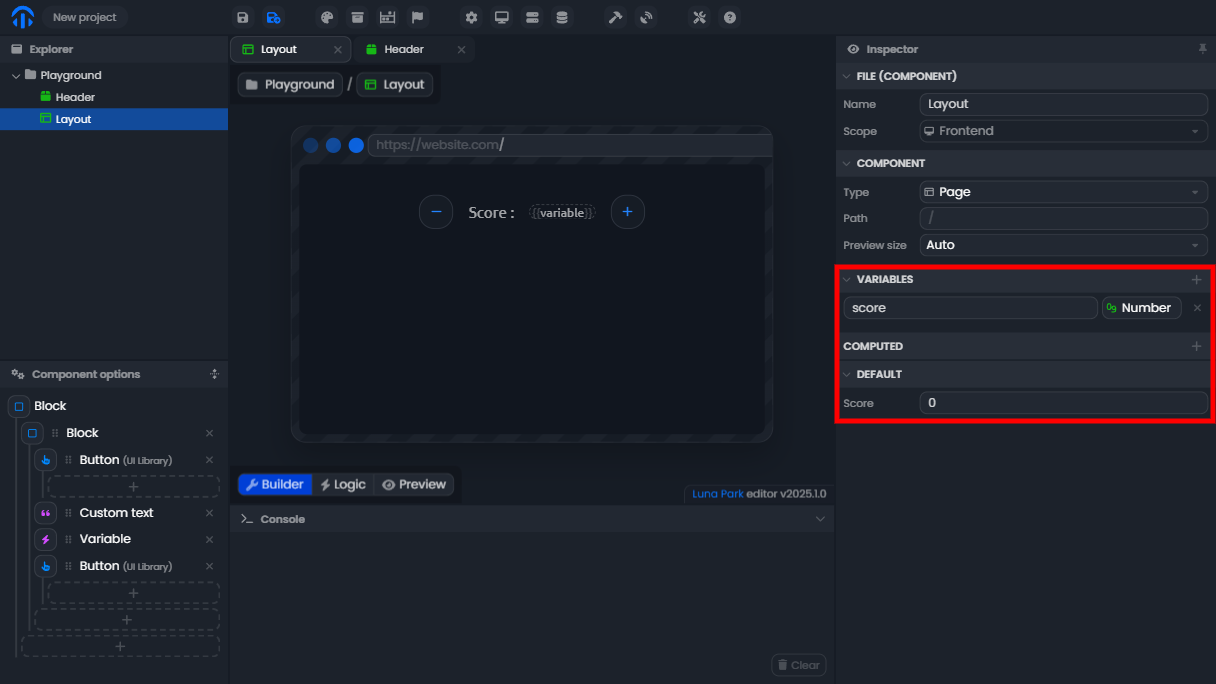
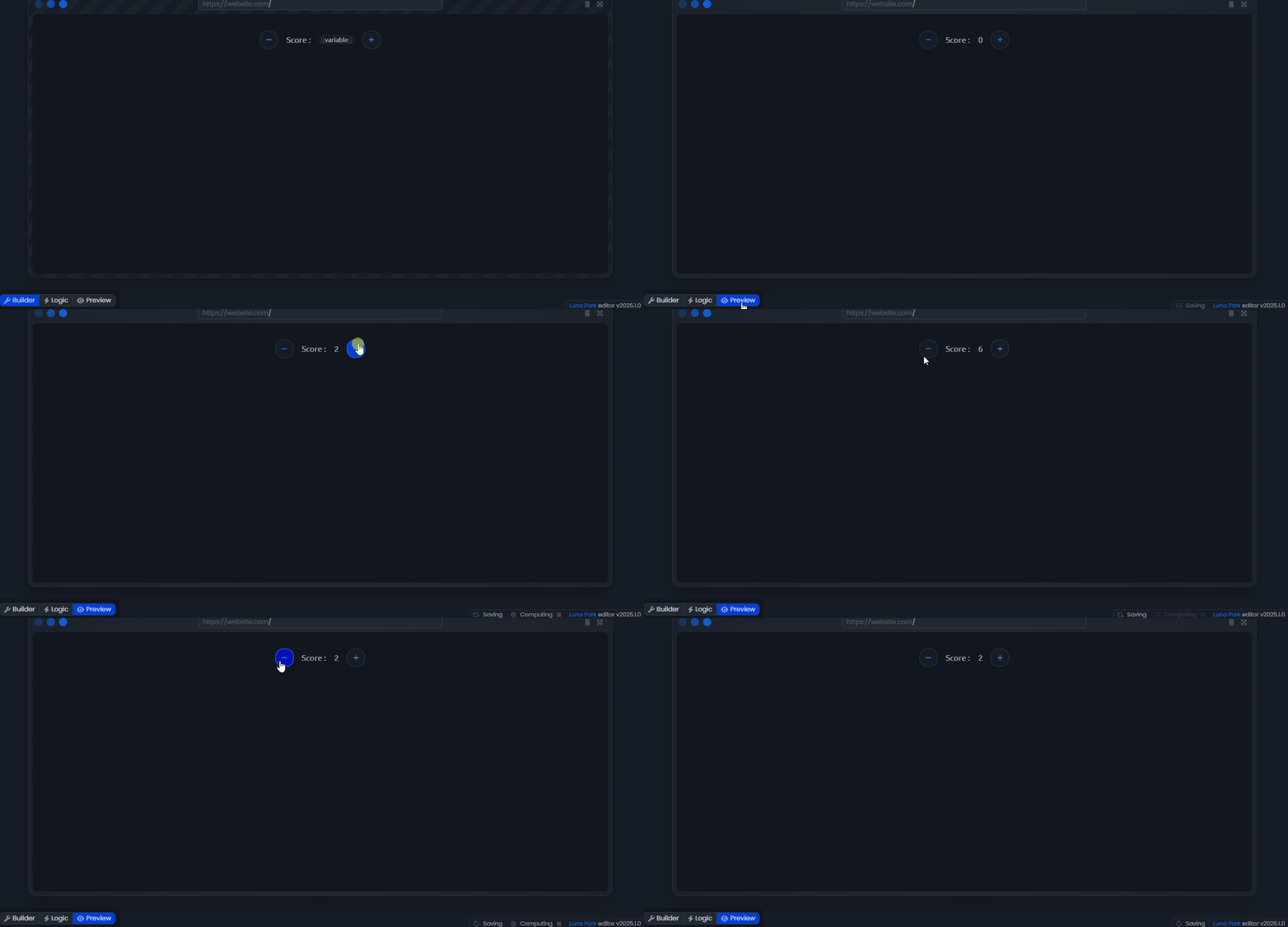
1. Define a Variable
- Select a component in the editor by clicking on it in the explorer.
- In the inspection panel, add a variable by clicking the
+button in the Variables section. - Give it a name and a type (e.g.,
scoreof type Number). - Give it an initial value in the Default section (e.g.,
0).
2. Add a Display Element
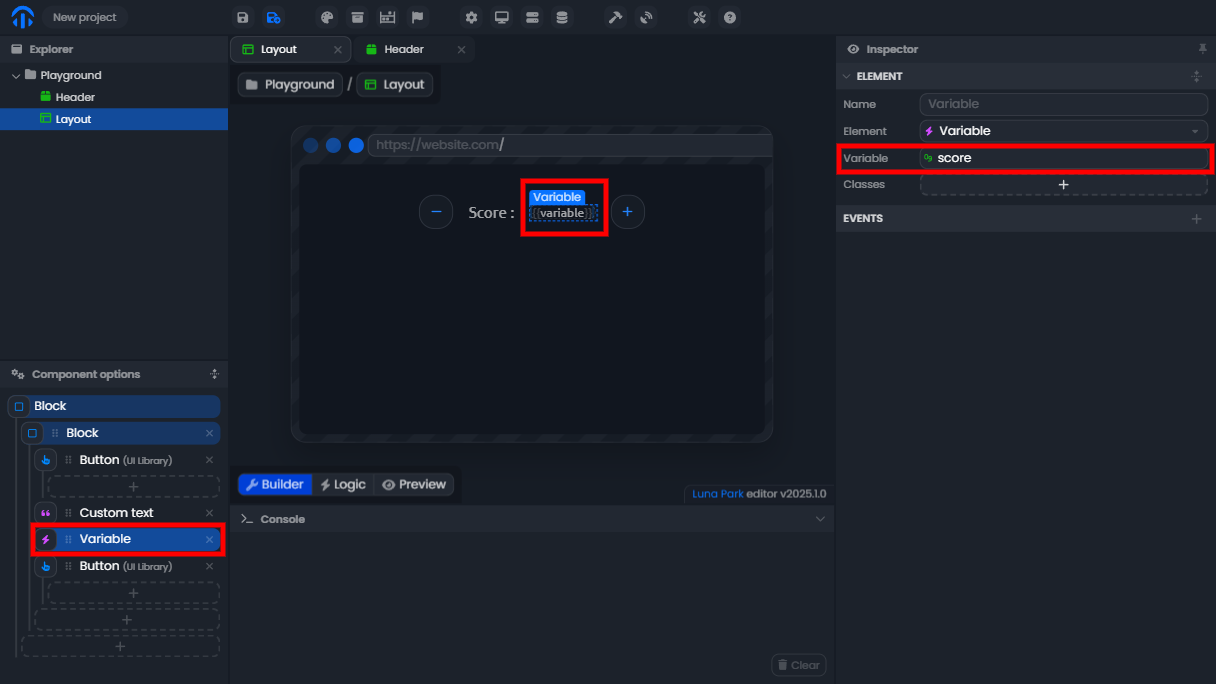
- Insert a Variable element into your component's tree.
- Select this element and link it to a variable in the inspection panel.
3. Add Buttons to Modify the Variable
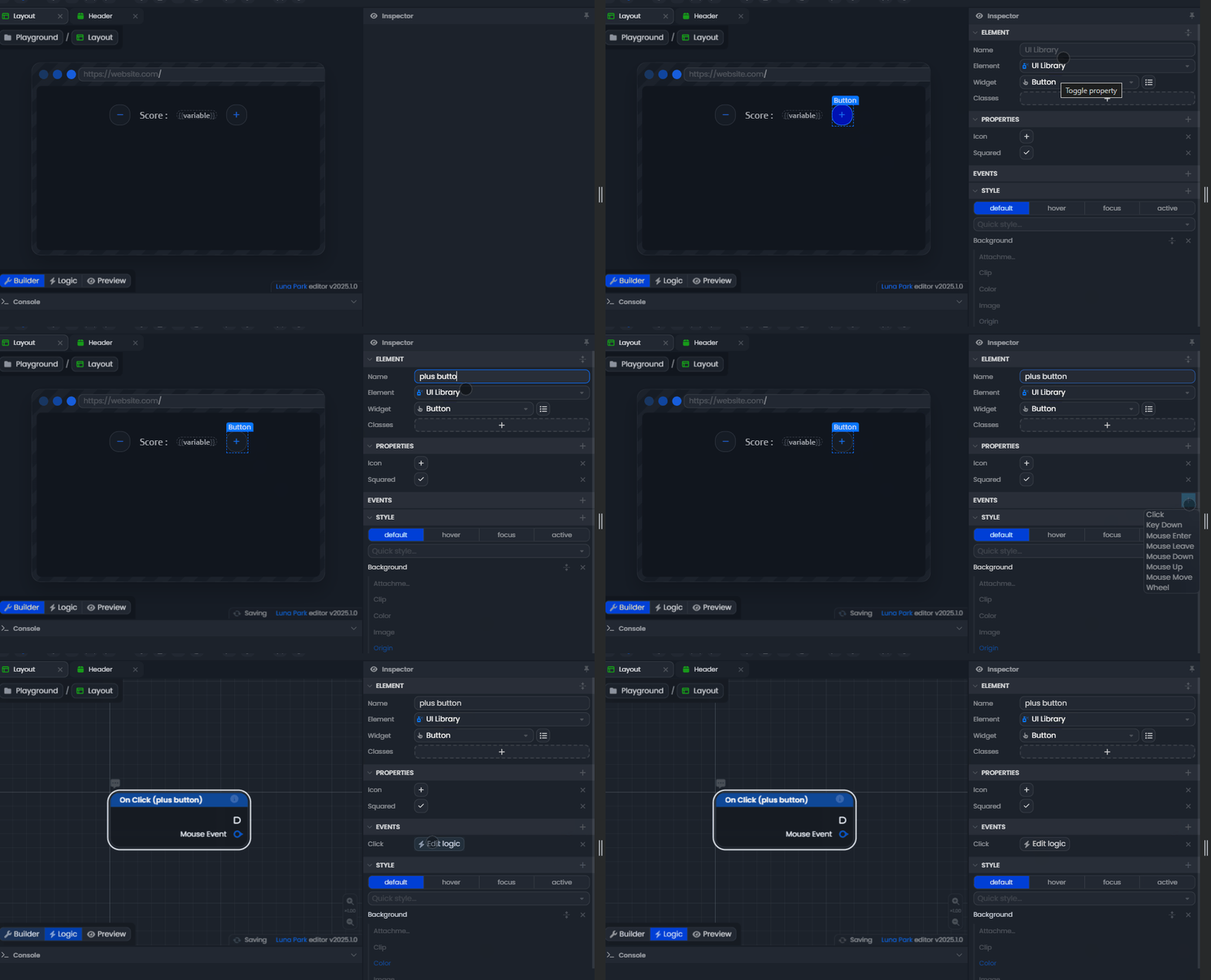
- Add two buttons to the interface, one to add and one to subtract a point from the score.
- Configure the buttons to trigger an On Click event.
4. Create the Logic to Update the Variable
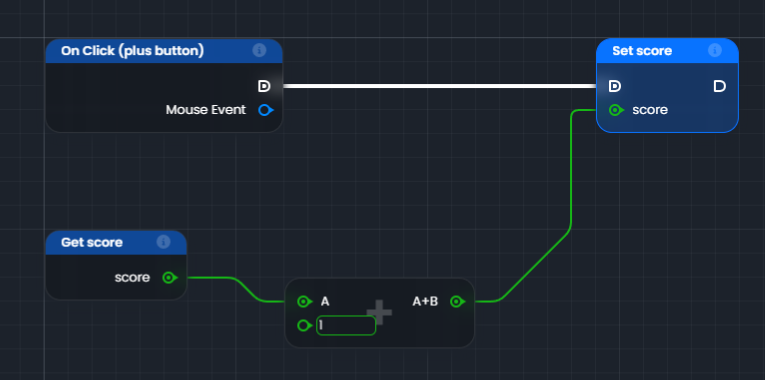
- Use the On Click node connected to the
+button. - Add the following nodes:
Get scoreto retrieve the current value of the score.Add (+)to add1to this value.Set scoreto update the variable with the new score.
- Repeat the process for the
-button, but use theSubtract (-)node instead ofAdd (+).
5. Test and Verify
- Switch to
Previewmode to test your application. - Click the
+and-buttons in the interface. - You should see the variable's value update in real-time.
Variable Reactivity
In the Interface
Variables can be used to display dynamic information in the user interface. If you modify a variable, the interface automatically updates to reflect this change.
Computed Variables
Computed variables are variables whose value is automatically recalculated based on other variables or conditions.
How it works:
- A computed variable depends on one or more other variables.
- When these variables change, the value of the computed variable is automatically updated.
Imagine you have a variable score and you want to display double this score in the interface. You can create a computed variable that doubles the value of score.
If score is 10, the computed variable will display 20. If score changes to 15, the computed variable will automatically display 30.
Sharing data between components
A variable belongs to its component. To share data across pages and components, use a store.