Template Elements
If Templates
If template elements allow you to display or hide interface elements based on a condition.
Example: Display a conditional message with a computed variable
In this example, we will display a message "You win" when the score exceeds a certain value. To do this, we will:
- Create a computed variable to check if the score is greater than
10. - Use this computed variable to display or hide a message in the interface.
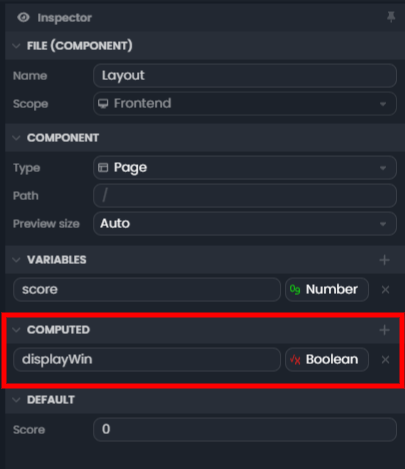
1. Define the Computed Variable
- Select the Layout component.
- In the Inspector panel, add a computed variable called
displayWin. - Define it as a boolean (true or false).
2. Use the Computed Variable in the Interface
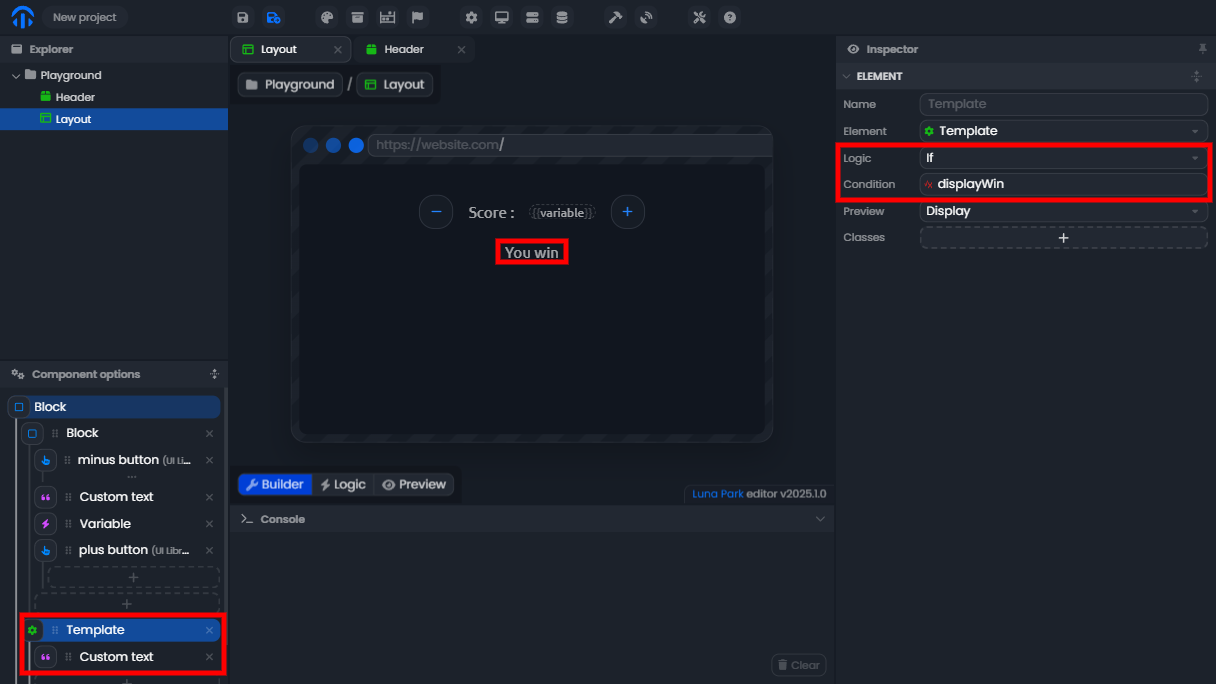
- Add a Template element to the interface.
- Inside the Template, insert a text component with the message "You win".
- In the inspection panel, link the Template component to the condition
displayWin.- If
displayWinis true, the message will be displayed. - If
displayWinis false, the message will not be displayed.
- If
3. Define the Logic for the Computed Variable
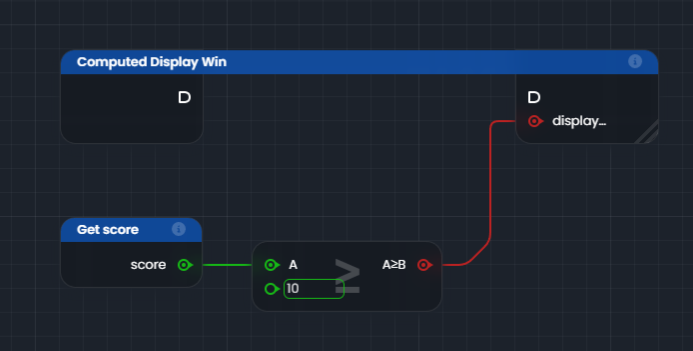
- In the graph, add a Get score node to retrieve the current value of the
scorevariable. - Use a Condition node (
A >= B) to check if the score is greater than or equal to10. - Connect the result of this condition to the computed variable displayWin.
4. Test Your Logic
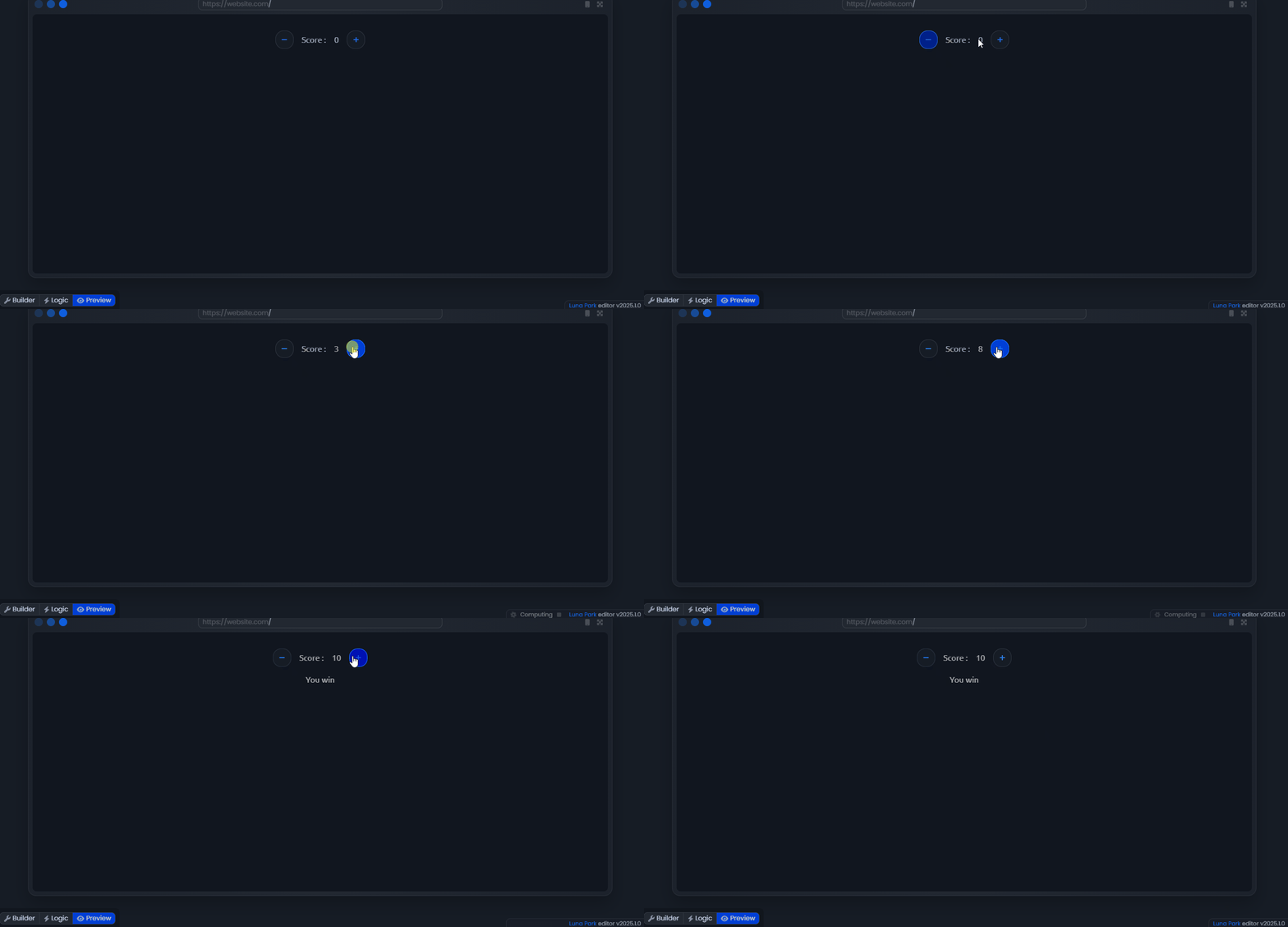
- Modify the score using the buttons in the interface.
- When the score reaches or exceeds
10, the message "You win" should automatically appear.
For Templates
The For template allows you to repeat an element multiple times based on an array or list. It is useful for dynamically displaying similar elements in the interface.
Example: Display a list of items
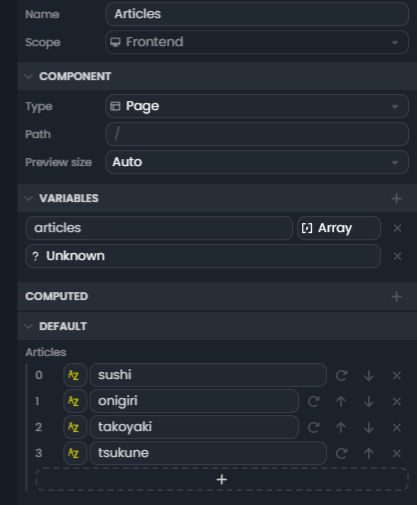
1. Create the Page and the Articles Variable
- Create a new page named Articles.
- In the Inspector panel, add a variable of type Array (array) called
articles. - Fill this variable with values, for example:
.
2. Set Up the Loop Logic
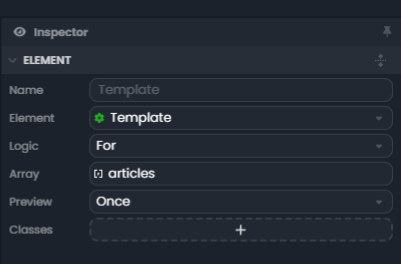
- Add a Template component to the interface.
- Configure the Template with the For logic and link it to the
articlesvariable. - The For logic allows you to iterate over each element of the
articlesarray. - The Template will execute its content once for each article.
3. Display the Elements in the Interface
- Inside the Template, add a Block.
- Insert a Variable component into this div.
- Link this variable to
Template[].Value, which corresponds to each element of the iterated array. - Now, when you view the Articles page in the interface, you will see each element of the
articlesarray displayed in a new block.
![Variable element bound to Template[].value, listing each article in the preview](/docs/assets/screen6.B4hzzfWO.png)