Events
Events start a graph when something happens. Some come with every component (On Mounted, On Unmounted, On Load, see Node Libraries). This page covers the events of layout elements: the user clicks a button, types in an input, moves the mouse over a card...
Adding an event to an element
- Open a page or component in Builder mode (see Builder).
- Select the element in the canvas or in the layout tree.
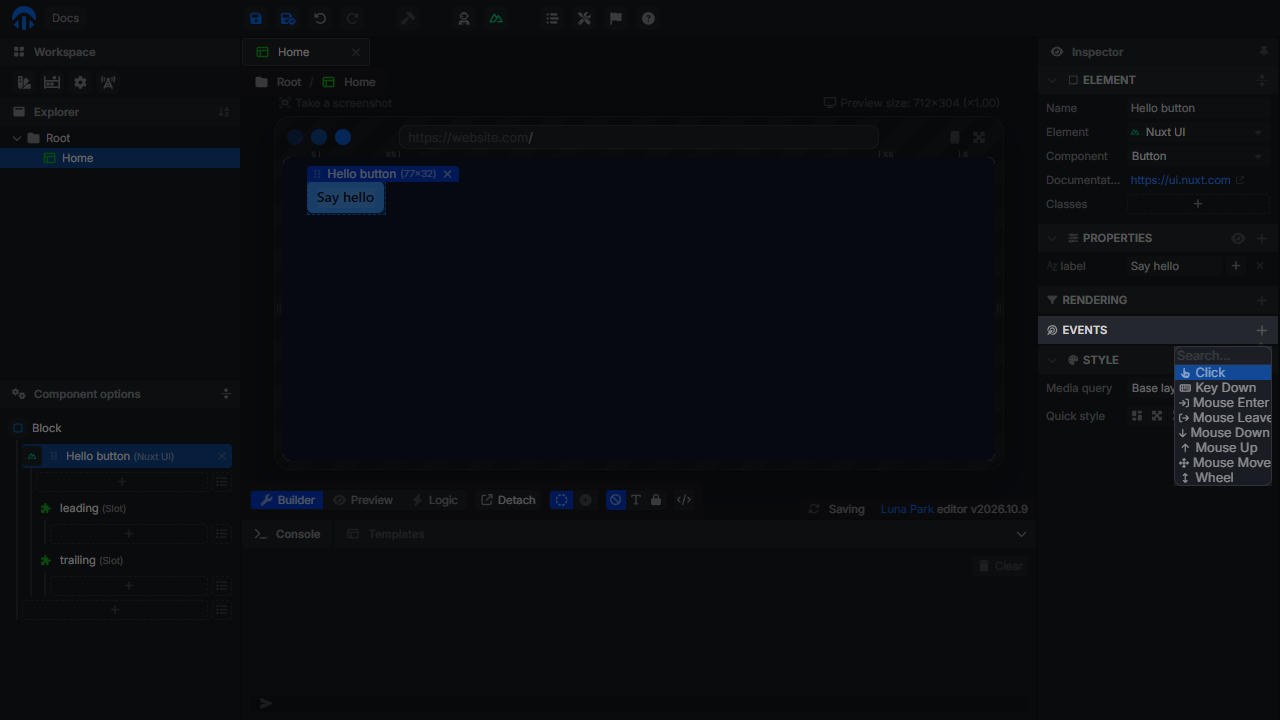
- In the inspector, click the + of the Events panel and pick an event, for example Click.
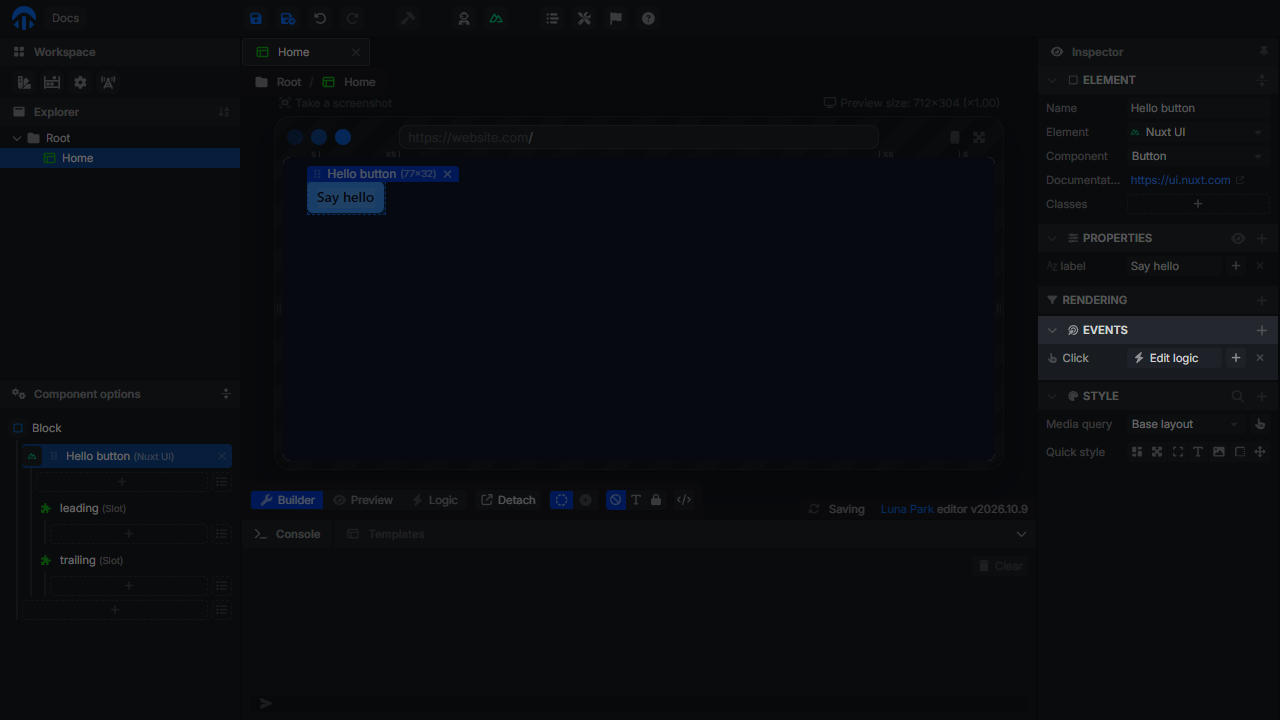
The event is listed in the panel. Click Edit logic to open the Logic view of the same file, centered on its event node.
The event node
Adding an event creates a node in the main logic of the file, named On <event> (<element name>), for example On Click (Hello button). Name your elements in the Element panel to tell event nodes apart.
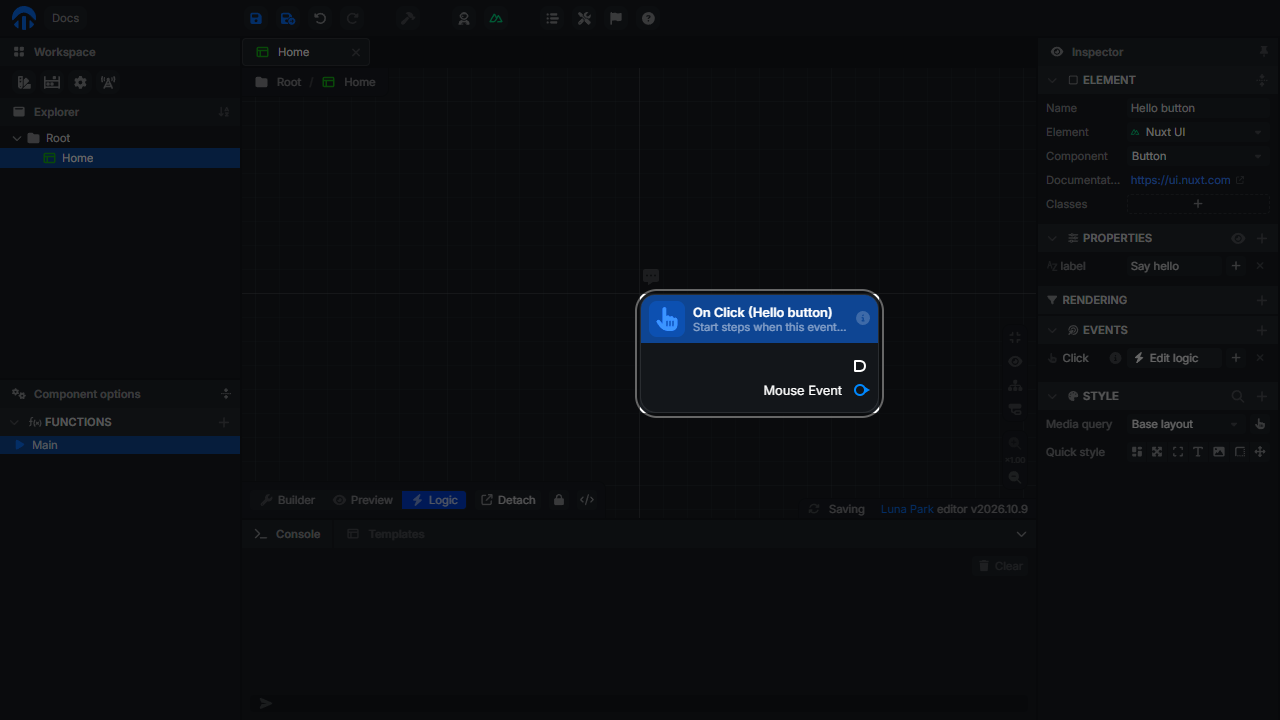
The node has:
- an execution output: connect it to the first node to run when the event fires;
- an event output (
Mouse Event,Keyboard Event,Wheel Event) with the details of the event; - one output per parameter of the event.
Each event node exists only once per element and event, and cannot be deleted from the graph: remove the event from the Events panel instead. Double-click the node to select its element in the builder.
In the node's inspector, the Async option runs the event asynchronously, so the nodes after it can wait for promises (Fetch, database queries...).
Available events
| Event | Triggered when | Event output |
|---|---|---|
| Click | The user clicks the element. | Mouse Event |
| Key Down | The user presses a key while the element has the focus (an input, a button...). | Keyboard Event |
| Mouse Enter | The pointer enters the element. | Mouse Event |
| Mouse Leave | The pointer leaves the element. | Mouse Event |
| Mouse Down | A mouse button is pressed over the element. | Mouse Event |
| Mouse Up | A mouse button is released over the element. | Mouse Event |
| Mouse Move | The pointer moves over the element. | Mouse Event |
| Wheel | The mouse wheel rolls over the element. | Wheel Event |
Components of your project and plugin components add their own events to the list. For example, a component that declares an Update event in its Events section offers Update in the Events panel of every element using it. Its value is the event output.
Slot and Template elements have no Events panel.
Event outputs
Connect the event output to a Spread node to get one output per property, or to Get Property to read a single one:
| Event output | Main properties |
|---|---|
| Mouse Event | clientX, clientY, offsetX, offsetY, pageX, pageY, button, altKey, ctrlKey, shiftKey, metaKey |
| Keyboard Event | key ("a", "Enter"...), code ("KeyA"), repeat, altKey, ctrlKey, shiftKey, metaKey |
| Wheel Event | deltaX, deltaY, deltaZ, deltaMode |
All of them also have target (the HTML element) and preventDefault, to cancel the browser's default behavior (submitting a form, scrolling...).
Event parameters
Click the + next to Edit logic to add a parameter to an event. Give it a name and a value: a constant, or a value bound to a variable of the component. The event node gets one output per parameter, holding the value at the moment the event fired.
Parameters are most useful in repeated elements.
Events inside repeated elements
When an element is repeated, with a Loop in its Rendering panel or inside a For template, the event fires for the occurrence the user interacted with. There is still a single event node.
To know which item was clicked, add a parameter to the event and bind it to the loop item: <element name>[].value for the item, or <element name>[].index for its position (Template[].value inside a For template). The parameter output of the event node then holds the clicked item.
Removing an event
Click the delete button of the event in the Events panel. Its event node is removed from the graph, along with its wires. Deleting the element removes all its events.
To rename an event node, rename its element.
What's next
- Follow Your First Interaction for a complete example: a button that logs a message.
- Learn to connect nodes in The Graph.
- Update the interface from an event with variables and stores.