Sidekick
Sidekick is the AI assistant built into Luna Park. It reads your project, creates and edits files (pages, components, routes, databases, stores...), tests what it builds, and can teach you how to do things yourself.
Open Sidekick
- Press
Ctrl + Shift + X; - or press
Shifttwice to open the Navigator, thenS; - or click the Sidekick AI button in the top bar.
Sidekick opens as a resizable workspace on the right of the editor. The same shortcut or button closes it.
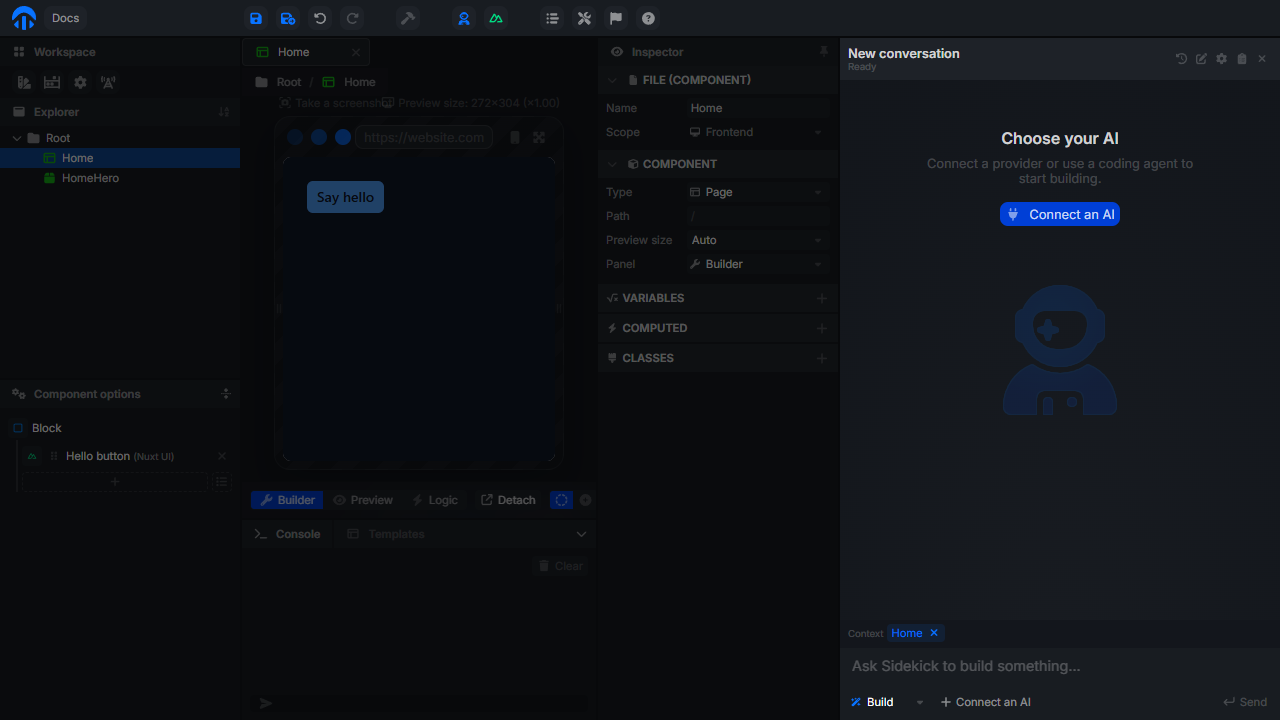
Its header shows the conversation title and status (Running, Complete, Waiting for answers...), and these buttons:
| Button | Action |
|---|---|
| Conversation history | Search, rename, delete, or reopen past conversations. |
| New chat | Start a new conversation. |
| Manage connections | Add or edit the AIs Sidekick can use. |
| Export debug session | Copy the conversation to the clipboard, to report a problem. |
| Close Sidekick | Close the workspace. |
Connect an AI
Sidekick needs an AI to work. Click Connect an AI (or Manage connections in the header) to open the connections window. Your connections are listed on the left; Add opens the gallery:
- Coding agents: Claude, Codex, Gemini CLI... running on your machine (desktop app only);
- Local models: Ollama, LM Studio, or another server on your machine (desktop app only);
- API providers: connect a hosted provider with an API key.
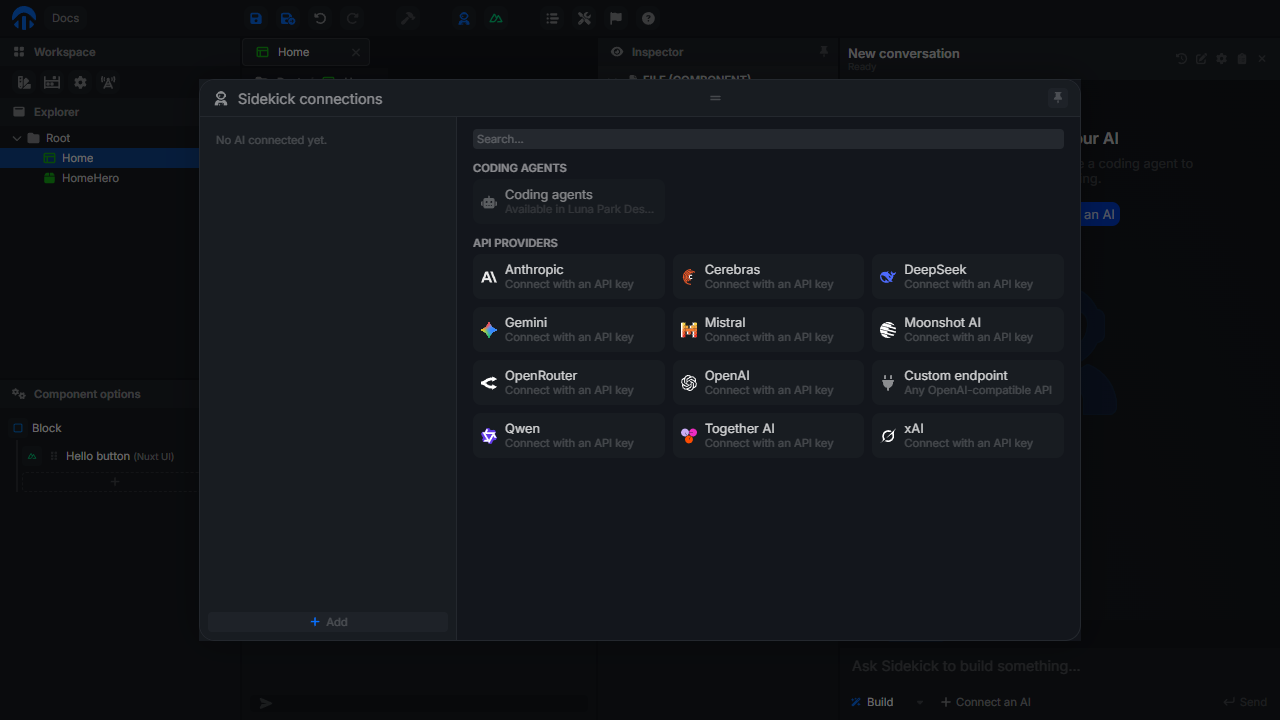
API providers
- Pick a provider in the gallery.
- Enter your API key (and the API URL for a custom endpoint).
- Sidekick tests the connection and loads the available models. Pick one in Model, or type its ID.
- Click Use in chat.
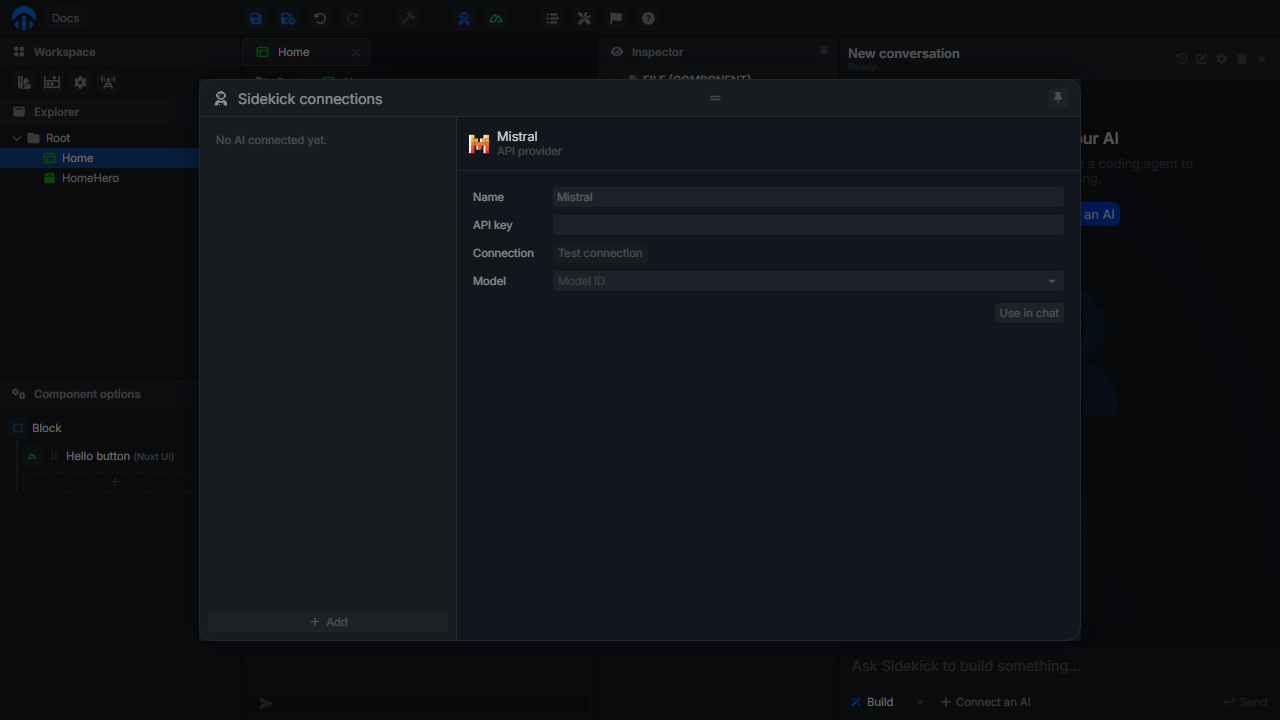
Supported providers: Anthropic, Cerebras, DeepSeek, Gemini, Mistral, Moonshot AI, OpenAI, OpenRouter, Qwen, Together AI, xAI, and Custom endpoint for any OpenAI-compatible API (the key is then optional).
You can add several connections, even to the same provider: give them a Name to tell them apart. The connection in use is marked In use. Remove a connection with the trash button of its pane.
Privacy
API keys are stored in your browser and only sent to the selected provider.
Coding agents
In the desktop app, Sidekick can delegate the work to a coding agent installed on your machine, with its existing configuration: Claude, Codex, Gemini CLI, Mistral Vibe, and other agents compatible with the Agent Client Protocol (ACP). Type in the gallery search to find more agents from the ACP registry. Agents that are not installed yet have an Install button.
Select an agent, then click Use in chat. Its pane shows the agent's Model, effort, and Permissions options. Luna Park gives the agent access to its MCP server automatically (see AI Agents).
To use another ACP-compatible agent, pick Custom agent and fill its Name, Command (on your PATH or an absolute path), Arguments, and Environment (one KEY=value per line).
When an agent asks for approval, or needs you to sign in, Sidekick shows the request in the conversation.
Local models
In the desktop app, Local models lists the model servers detected on your machine (Ollama, LM Studio). Pick a model and click Use. Under Custom endpoint, enter the API URL of another server, then Connect.
In Build mode, the model must support tool calling.
Modes
When the conversation is empty, Sidekick shows a card for each mode. Hover a card to read its description. During a conversation, switch mode from the dropdown under the prompt.
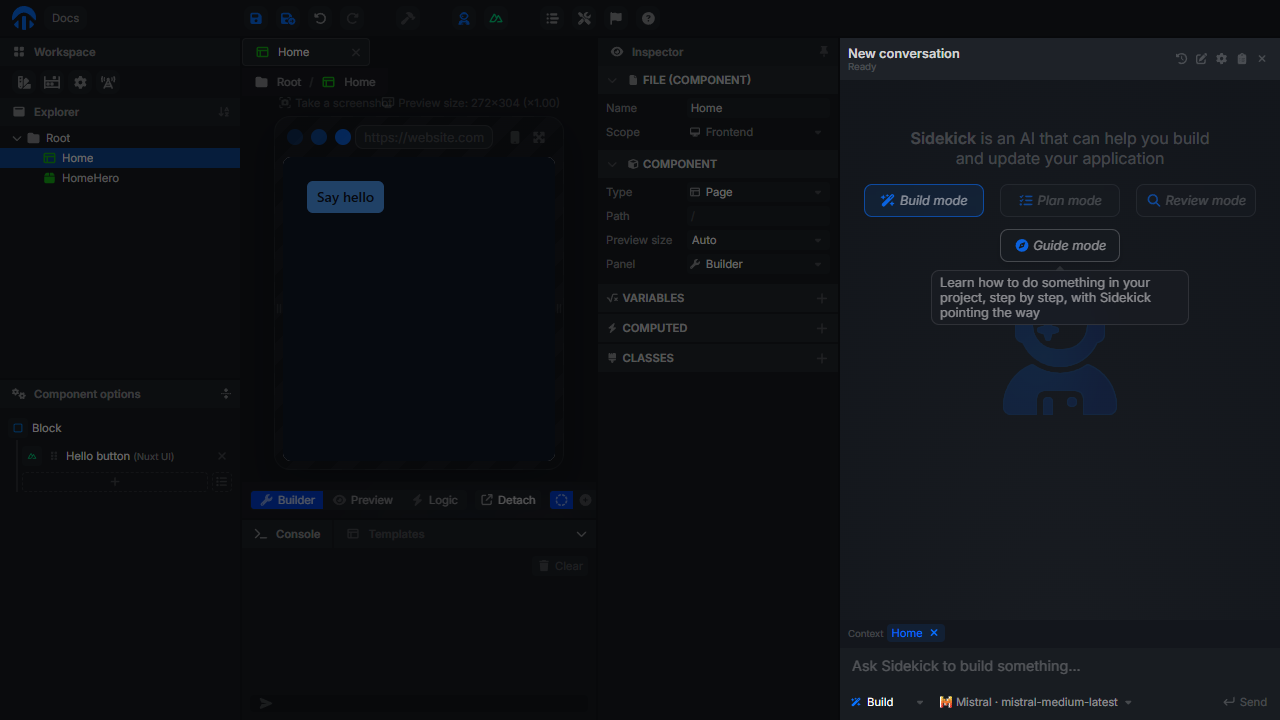
| Mode | What Sidekick does |
|---|---|
| Build | Chats with you and makes changes to your application. |
| Plan | Explores your application and proposes a plan before changing anything. |
| Review | Inspects your application and gives suggestions without making changes. |
| Guide | Teaches you how to do something in your project, step by step. You make every change. |
Guide mode
In Guide mode, Sidekick never changes your files. Ask it a question ("What's the difference between a store and a database?"), how to do something ("How do I make this button open a modal?"), or to guide you through a small project.
Sidekick gives one step at a time, with links to the documentation. Under each step:
- Show me where highlights the place in the editor where the step happens;
- Done tells Sidekick you made the change. When it can, Sidekick watches your files and moves on by itself (Nice, that's done!);
- Why? asks for more details about the step;
- Skip goes on without doing it.
You can also answer in the prompt, for example to say what you see instead.
Chat with Sidekick
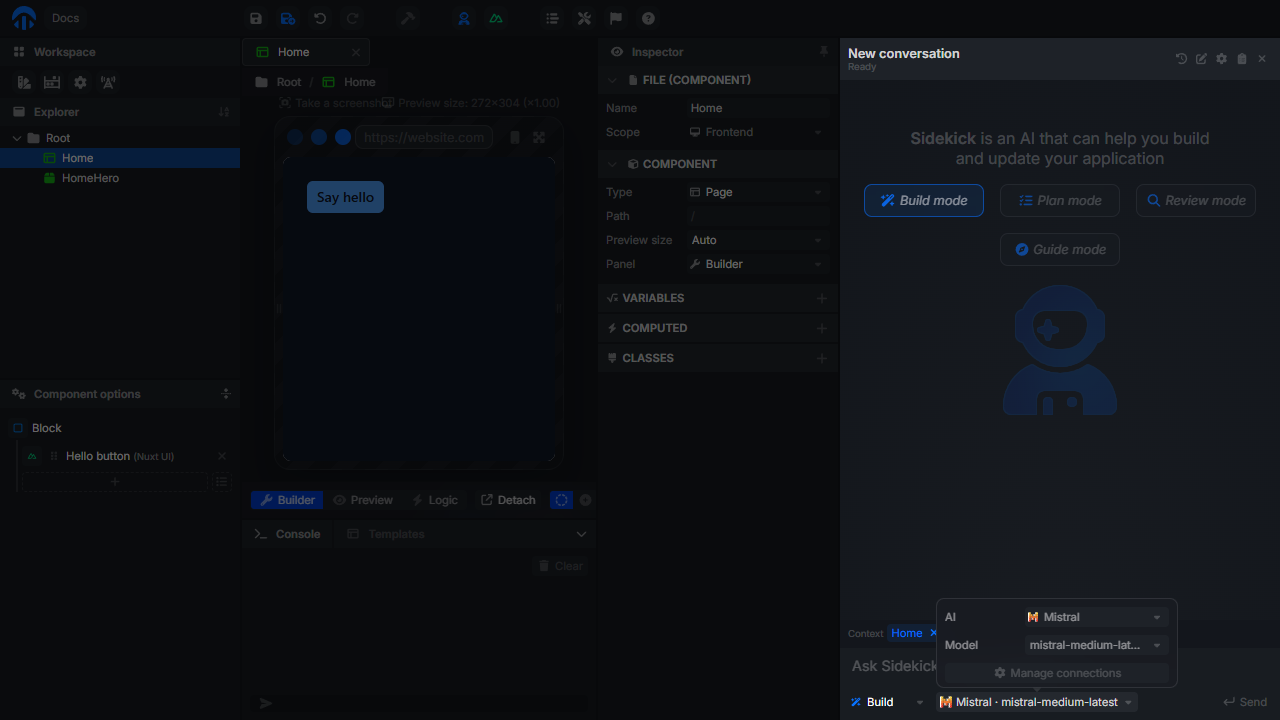
The model selector under the prompt shows the AI in use. Click it to switch to another connection, change the Model or the Effort (agents only), or open Manage connections....
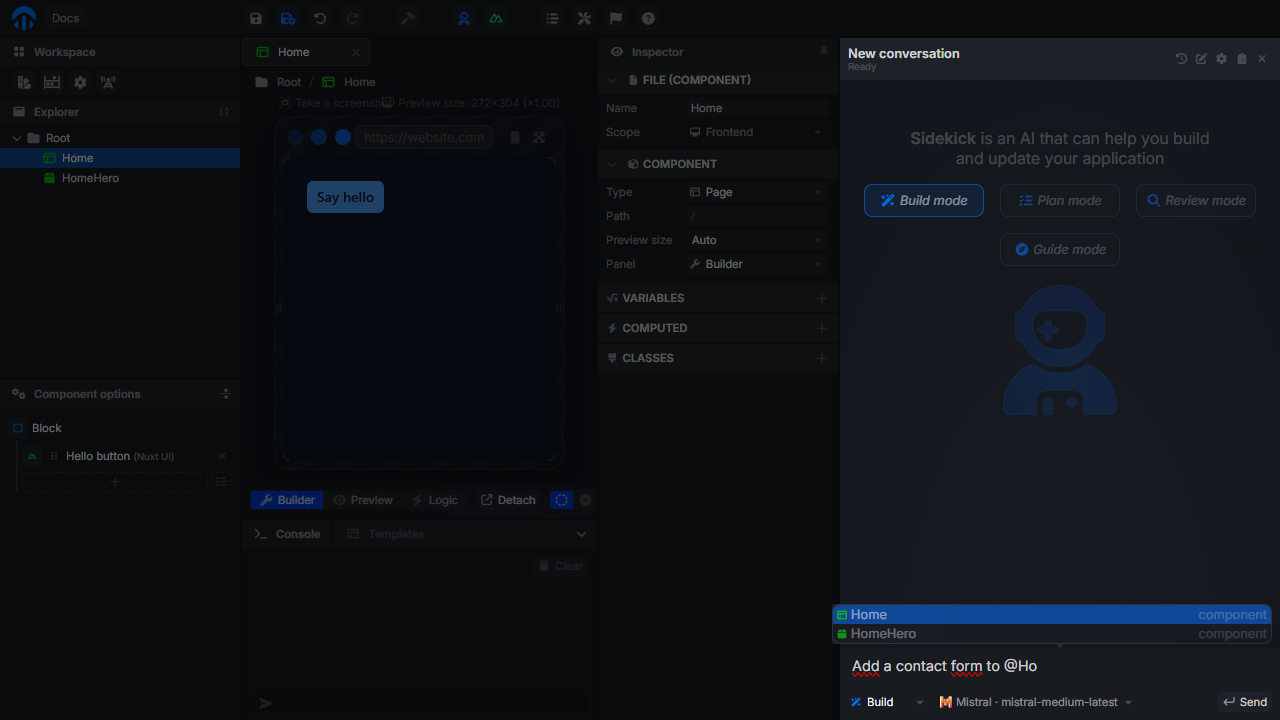
- Type
@in the prompt to mention a file, then pick it with the arrow keys andEnter. - The file open in the editor is sent as Context. Click its chip to leave it out of the prompt.
- Sidekick also knows the current panel and the selected element or nodes, so you can ask about "this button".
While Sidekick works, click Stop Sidekick to interrupt it. Messages sent in the meantime are queued and sent once it finishes. Sidekick shows its reasoning, its plan, and the diff of each change, and may ask you questions through a small form.
Review and undo changes
At the end of a run, a summary lists the changed files. Click Review to see them, open a file, or click Undo run to revert all the changes of that run. If you edited some of these files since, Sidekick stops and offers to Undo unchanged files only.
What Sidekick can do
In every mode, Sidekick can read the file tree, search files, list nodes, components, tokens, and plugins, and search the Luna Park documentation.
In Build mode, it can also:
- create and edit files, and update design tokens;
- run routes to test the backend. Database changes are always rolled back;
- interact with the live preview like a user (click, fill inputs, read values). Cookies and database changes are rolled back.
Generate values
Data forms (default values, table rows...) have a Generate button: describe the expected content, and Sidekick fills the values.