Pages and Navigation
Each page of your app is reached through its own URL path. This page explains how to set that path, how to read parts of the URL, and how to go from one page to another.
Page path
Select a page file and look at the Component panel of the inspector: the Path field sets the URL of the page, for example about for /about. The leading / is added for you.
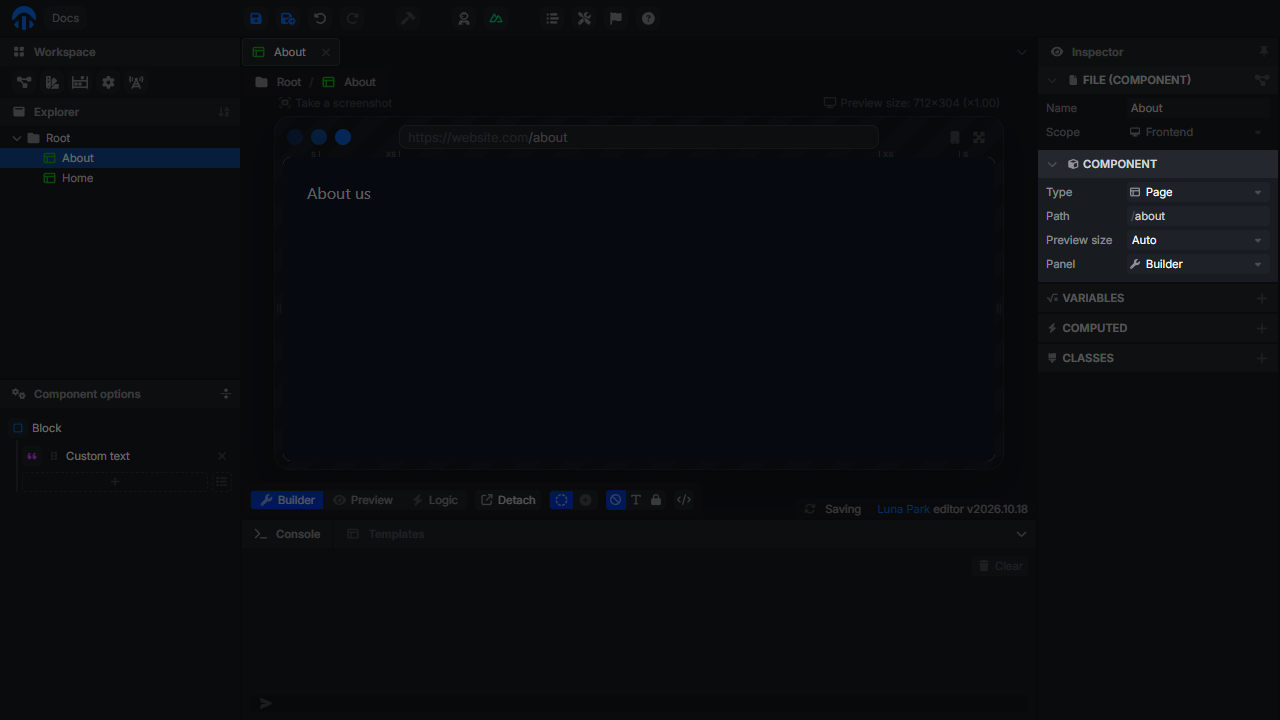
New pages start with the path /. Give each page its own path: when two pages share one, the field shows Path already used by with the other page names, and only one of them can be reached.
The page with the path / is the home page of your app.
Switching a component to a page
The Path field only appears once the file type is Page. See Components.
Dynamic segments
A path segment starting with : matches any value. A page at /product/:id is opened by /product/12, /product/shoes...
Read the value in the graph with the Get Router node: its currentRoute output contains params, with one entry per dynamic segment (params.id here). currentRoute also gives the current path and the query parameters (?sort=price).
/product/:id and /product/:slug are the same path: only the position of the dynamic segment counts.
Links
To navigate when the user clicks some content, insert a Link element (see Builder) and set its address:
- A path of your app, such as
/aboutor/product/12, opens that page without reloading the app. - A full URL starting with
http://orhttps://opens an external site, in a new tab by default.
Put any content inside the link: text, an image, a whole card.
Navigating from the graph
The Navigate node (search Navigate in the graph) opens another page from a graph, for example after a form is saved or when a plugin button is clicked:
- Add a Click event on the button (see Events), then click Edit logic.
- Add a
Navigatenode and connect the event node to it. - Type the destination in its path input, for example
/about, or connect a value built in the graph, such as/product/followed by an ID.
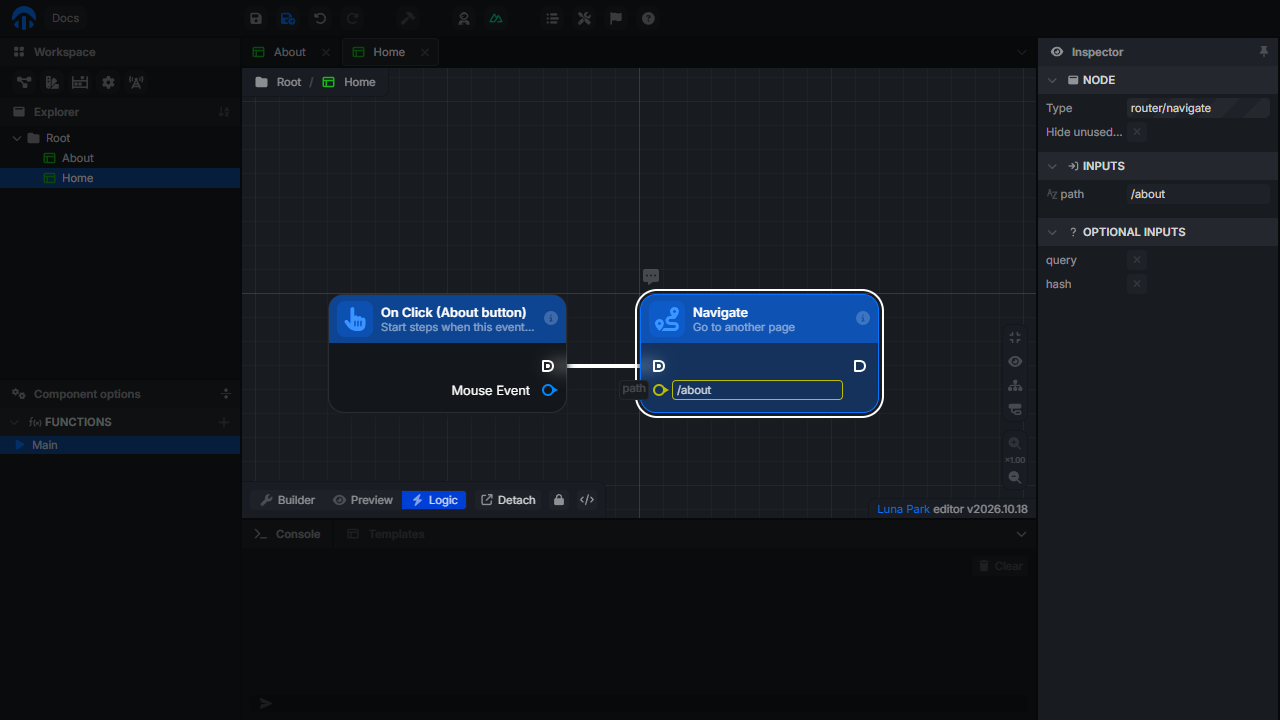
Navigate also has two optional inputs:
| Input | Description |
|---|---|
| query | Query parameters added after ?. Add one entry per parameter. |
| hash | A fragment added after #, such as #pricing. |
History mode
How paths appear in the address bar (/about, /#/about, or hidden) depends on the history mode set in the web settings. Page paths, links, and Navigate are written the same way in every mode.