Preview
The main view renders the page or component you are editing, live. The toolbar at its bottom left picks how:
| Mode | Use |
|---|---|
| Builder | Select, move, and edit elements. See Builder. |
| Preview | Use the page like a visitor: events run, conditions and loops use real values, inputs update their variables. |
| Logic | Edit the graph of the file. See The Graph. |
Builder mode
In Builder mode, the canvas is made for editing:
- hovering an element outlines it, with its margin (green) and padding (blue);
- the selected element has a badge with its name and size, and three buttons: the grip to drag it, the × to delete it, and, on a component instance, the pencil to edit its content in place;
- double-click a component instance to open its file;
- hold
Ctrlto drag any element directly; - hold
Ctrl + Altto outline every element under the cursor, not only the innermost one; - loops show their first item, and conditions are shown, following their Simulation setting (see Conditions and Loops).
The toolbar has extra buttons in Builder mode:
| Button | Effect |
|---|---|
| Show insert mode | Shows insertion points on the canvas. See Builder. |
| Block interactions | On by default: clicks select elements, events don't run, links don't navigate, and inputs don't change variables. Turn it off to try the page without leaving Builder mode. Clicks still select elements. |
| Preview text | Shows Custom text and Variable elements with their final content and values, instead of editable text and variable names. |
Common buttons
| Button | Effect |
|---|---|
| Lock preview mode | Keeps the current mode when you open another page, from the Explorer or by following a link. Without it, each page opens in its own last mode. |
| Preview code | Shows the code generated for the file next to the preview, read-only. Available for components, pages, scripts, stores, configurations, routes, crons, databases, and media. |
| Detach | Opens the preview in a new window, in the web editor. See Detached preview. |
The browser frame
Pages are shown in a browser frame.
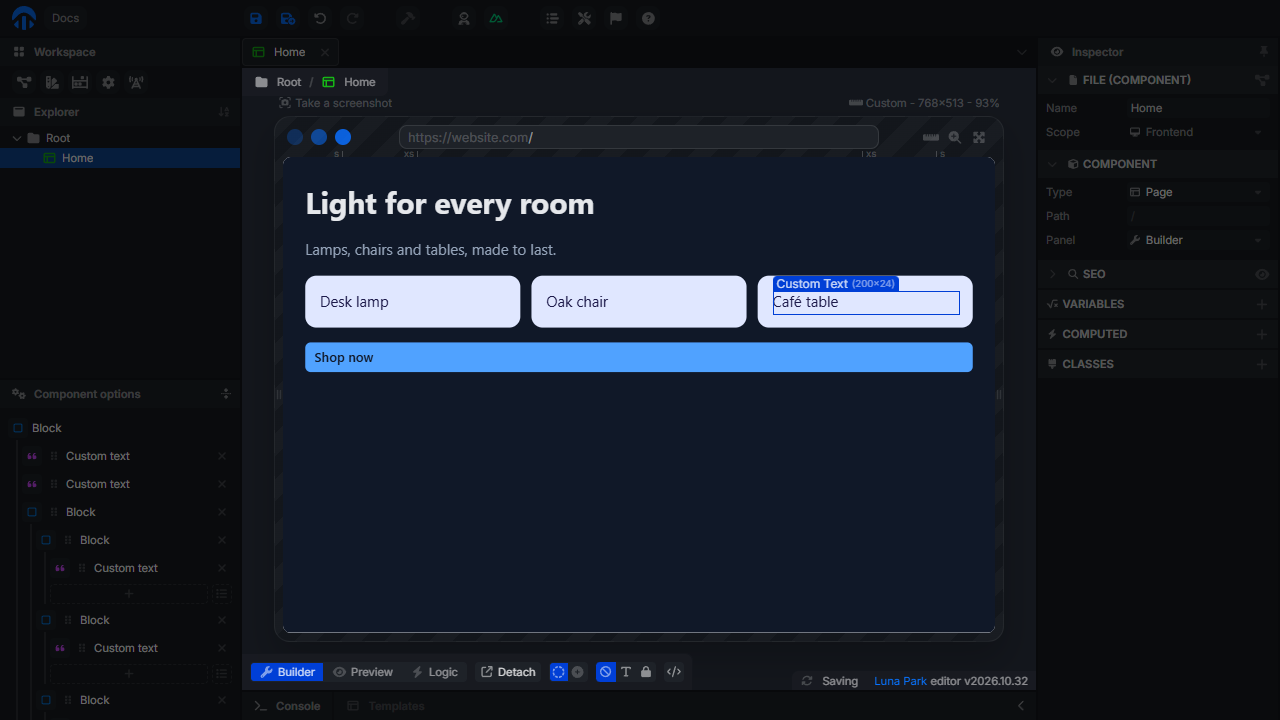
Address bar
The address bar shows the path of the current page. Type a path and press Enter to navigate, for example /articles/42 to try a page with a dynamic segment. When you open a page with a dynamic path, its parameters hold the segment names (:id) until you type a real path.
Links inside the frame navigate the preview. Links to other websites open in a new tab. In Preview and Logic modes, navigating to another page opens its file. In Builder mode, the open file stays the same, and only the route changes.
Device and size
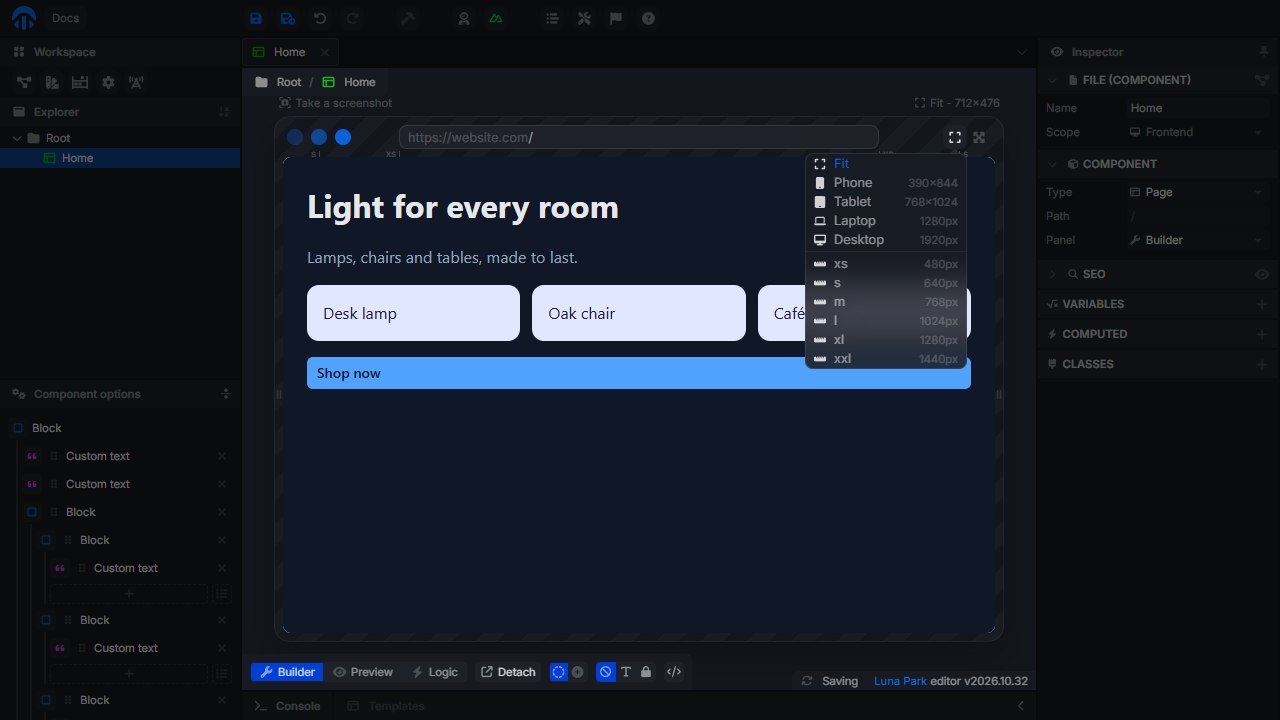
The device button at the top of the frame (Preview device) picks the size of the frame:
| Device | Size |
|---|---|
| Fit | The size of the main view. |
| Phone | 390×844, in a device frame. |
| Tablet | 768×1024, in a device frame. |
| Laptop | 1280 px wide. |
| Desktop | 1920 px wide. |
xs to xxl | The width of a breakpoint: 480, 640, 768, 1024, 1280, or 1440 px. |
- Rotate switches a phone or a tablet to landscape.
- Drag the handles on the sides of the frame to set any width (from 240 to 3840 px). The width snaps to the breakpoints, and a hint shows the width and the breakpoint.
- The ruler under the address bar marks the breakpoints. Click one to set the frame to its width. The breakpoint that applies to the current width is highlighted.
The size, the device, and the zoom are shown above the frame (Phone - 390×844 - 62%). When the frame is larger than the main view, it is zoomed out: Show at 100% shows it at its real size (scroll to see the rest), Fit to panel zooms it back out.
The device applies to every page, until the project is reopened. A project with a mobile-first responsive strategy opens on Phone, other projects on Fit.
Full screen
Expand to full screen shows the preview over the whole editor. Press Esc to exit.
Screenshot
Take a screenshot, above the frame, saves an image of the frame as screenshot.png. The browser asks to share the tab first: accept to take the screenshot. The link is only shown in browsers that support screen sharing.
Component preview
Components (not pages) are shown on a canvas, without browser frame. Two settings of the Component section of the inspector control how:
| Setting | Effect |
|---|---|
| Preview | Compact: the component at its natural size, centered. Stretch: as wide as the canvas. Full: the whole canvas. |
| Container | The width of the container around the component, to see it at a given screen size: a device, a breakpoint, or a custom value. Responsive styles react to it. Reset to default clears it. |
| Panel | The mode the file opens in: Builder, Preview, or Logic. |
These settings are saved with the component.
Detached preview
In the web editor, Detach opens the page or component in a new window, always in Preview mode. Put it on a second screen to see the result while you edit: it updates live with every change, without saving.
If nothing opens, allow popups for Luna Park in your browser, then try again. The detached window stops updating when the editor is closed.