Bindings
Most fields of the Builder inspector can take a fixed value or follow a variable. A field that follows a variable is bound: when the variable changes, the interface updates.
Bindings are available in:
- the Properties panel (element and component properties, and the
{name}placeholders of Custom text and Custom HTML); - the Rendering panel (Condition and Loop);
- the Classes of the Element panel;
- the Style panel and the quick style panels;
- event parameters, slot scopes, and the Variable element.
Value types
Hover a field: a small tab appears at its bottom-right corner. Hover the tab to pick how the field gets its value:
| Type | Value |
|---|---|
| Constant | A fixed value, typed in the field. |
| Token | A design token (colors, lengths, fonts...) or a component class. Only shown for fields that accept tokens. |
| Variable | A value of the component, picked in a list. It updates the field when it changes. |
WARNING
Switching the type of a field removes its operations.
Picking a variable
With the Variable type, click the field to open the picker. It lists:
- the component's Variables, Properties, Computed values, and Functions;
- the item of each enclosing Loop, named after the looped element, with its Index and Value;
- slot scopes, and the component's Model (see Components);
- stores, media files, and Frontend or Shared configuration files;
route>paramson pages with dynamic segments.
Objects open a submenu to pick one of their properties. Hold Ctrl to also open arrays ([item], length), texts ([char], length, trim()), and functions (their outputs).
Values that cannot become the type of the field are grayed out. Type in the search box to filter the list.
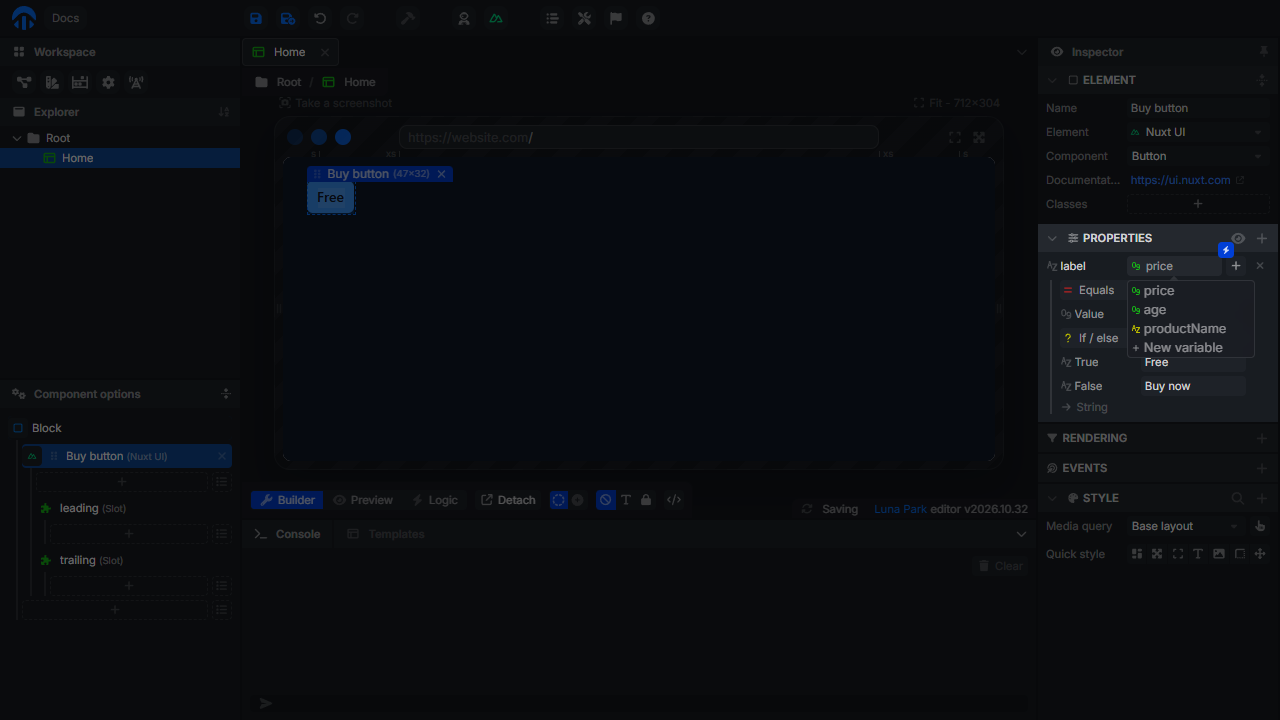
The bottom of the picker has a shortcut:
- New variable creates a variable of the field's type in the component, named after the field, and binds it.
- New function (for fields that expect a function, like some plugin properties) creates a function with the matching inputs and a
resultoutput, and binds it.
Operations
An operation transforms the bound value before it reaches the field: compare it, format it, compute with it. Operations replace small computed variables for simple cases.
- With the Variable type, click the + button (Add operation) next to the picker.
- With the Constant type, right-click the value.
The menu only lists operations that can lead to the type of the field, the closest first.
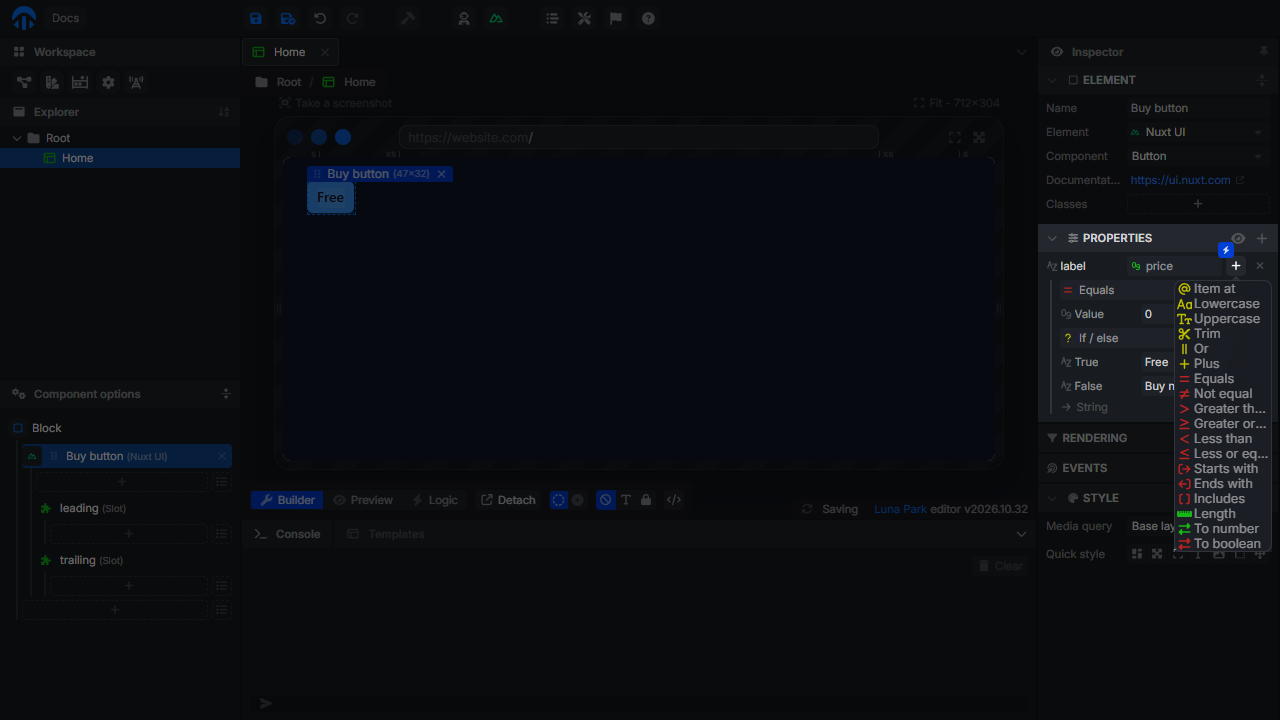
| Operation | Applies to | Arguments | Result |
|---|---|---|---|
| Equals, Not equal | Boolean, number, text | Value | Boolean |
| Greater than, Greater or equal, Less than, Less or equal | Number, text | Value | Boolean |
| Starts with, Ends with | Text | Prefix / Suffix | Boolean |
| Includes | Text, array | Value | Boolean |
| Item at | Text, array | Index (negative counts from the end) | Character / item |
| Join | Array | Separator | Text |
| Lowercase, Uppercase, Trim | Text | Text | |
| Length | Text, array | Number | |
| Not | Boolean | Boolean | |
| And | Boolean | Value | Boolean |
| Or | Boolean, number, text | Value | Same type: the value if the input is empty, 0, or false |
| Plus | Number, text | Value | Same type (texts are joined) |
| Minus, Multiply, Divide, Modulo | Number | Value | Number |
| If / else | Boolean | True, False | The value of the matching argument |
| To text, To number, To boolean | Boolean, number, text | Converted value | |
| Call | Function | One per function input | The function's output |
Chaining
Operations run in order: each one receives the result of the previous one. For example, to show a badge only for adults, bind its Condition to age, then add Greater or equal 18. To show Free or the price, bind the text to price, add Equals 0, then If / else with Free and the price.
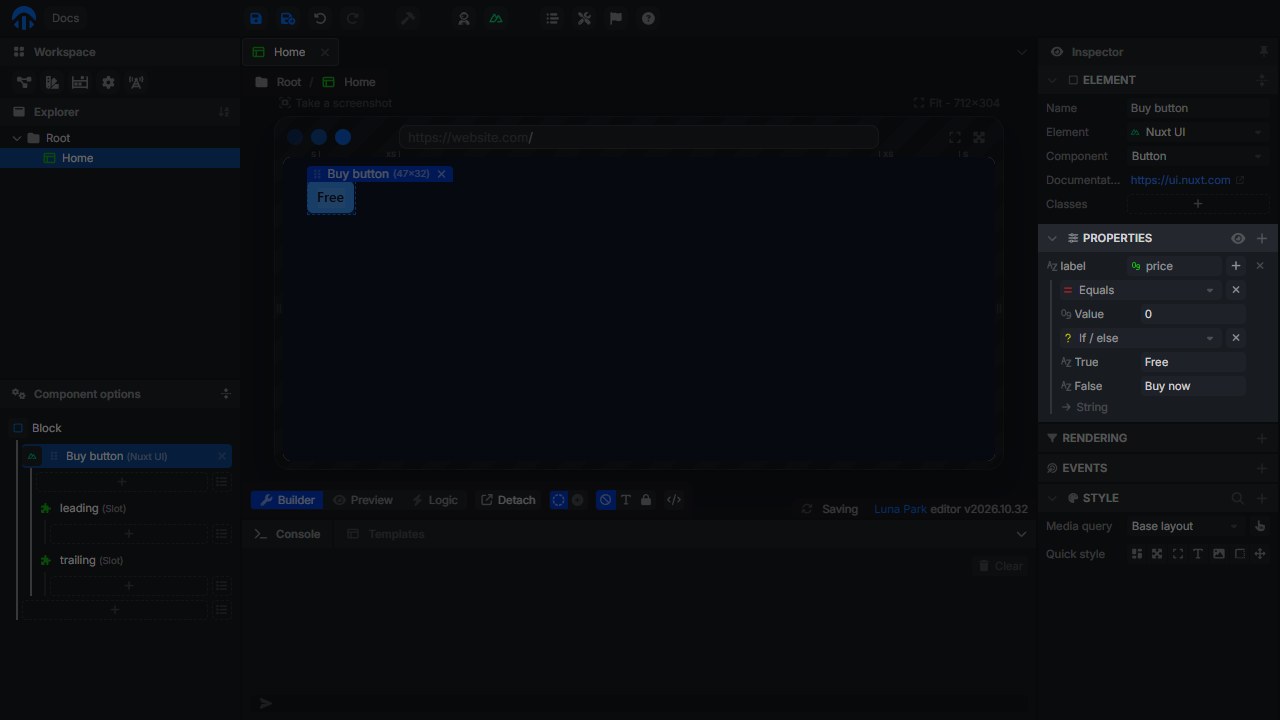
Each operation has:
- a dropdown to replace it with another operation (matching arguments are kept);
- a property selector when its result is an object (a function returning an object, an Item at on a list of objects);
- a × button (Remove operation).
Arguments are bound values too: they can be constants, tokens, or variables, with their own operations.
Under the operations, an arrow shows the type of the result. It turns into a red warning when the result does not match the field: fix or remove the last operation.
TIP
Operations can't be reordered. Removing an operation in the middle also removes the following ones that no longer accept their new input.
Calling a function
Pick a function of the component in the picker, then add Call, and fill one argument per input of the function. The field shows the function's result. Use it for formatting that needs more than a few operations, written once as a function.