Data Types
Every value in Luna Park has a type: variables, properties, function inputs and outputs, store schemas, route inputs and outputs, database columns. Types make the editor offer the right inputs and nodes, color the pins of the graph, and generate typed code.
The type selector
Next to the name of a value, the type selector (Type...) lists:
| Type | Value |
|---|---|
| String | Text. |
| Number | A number, with or without decimals. |
| Boolean | true or false. |
| Object | Named properties, each with its own type: { name: String, age: Number }. |
| Record | Any number of keys, all with the same type of value: a score per player name. The keys are String or Number. |
| Interface | An object of a built-in class, picked in a second list: Date, URL, File... Libraries and plugins add their own. |
| Type | A reference to a named type (see Type files). |
| Array | An ordered list of values of the same type. |
| Combine > Union | One of several types: a String or a Number. |
| Combine > Intersection | All of several object types, combined into one. |
| Function | A function, with its inputs (an Object) and its output. |
| Void | No value. Only for outputs: function outputs, events, computed values. |
| Unknown | Any value. |
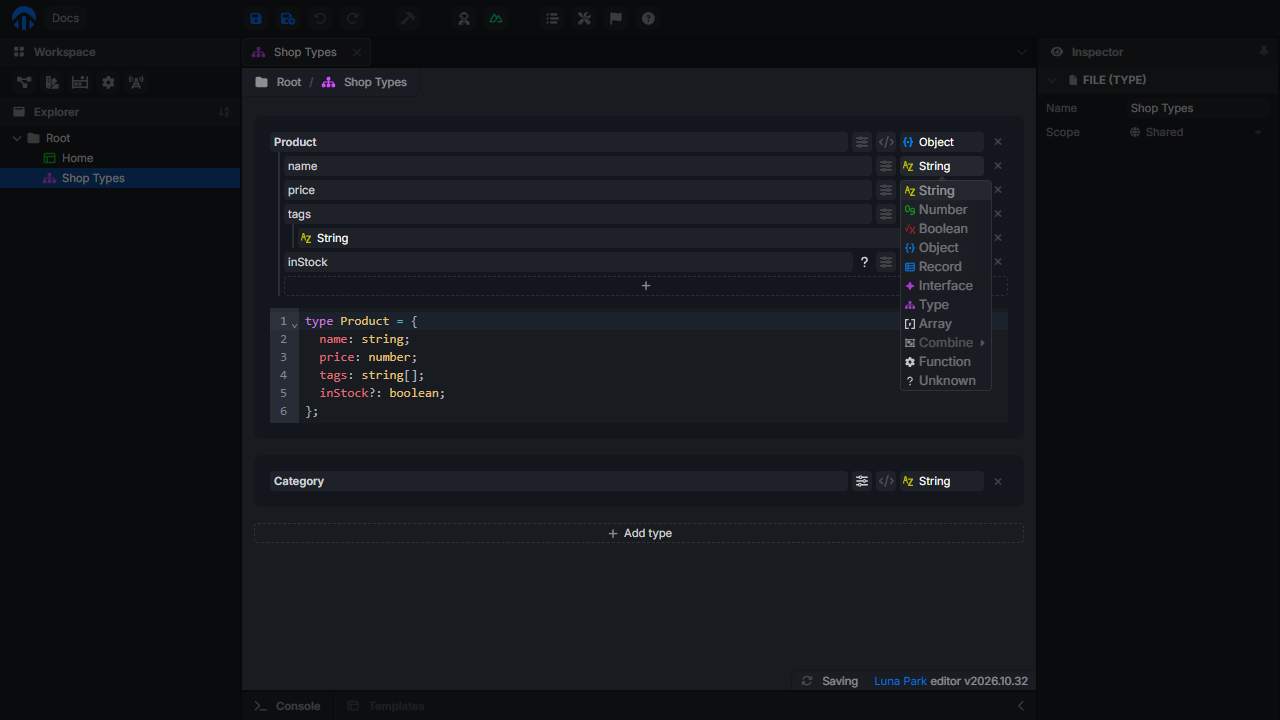
Some places add their own entries: Execute for the execution pins of macro inputs and outputs, Foreign Key for database columns.
Changing the type of a value resets what is specific to the old type (properties, item type...).
Objects
Under an Object, the + button adds a property: give it a name and a type. Properties can be objects too, to any depth.
- Renaming a property keeps the logic and bindings that use it.
- Drag a property by its type selector to reorder it among its siblings.
- × removes it.
↑and↓move between the name fields.
Some objects are partly locked: the parameters of a route, the automatic columns of a table.
Type files
A type file holds named types, to define a shape once and use it everywhere. Create one with New > Type in the Explorer.
- Add type creates a type. Name it, then define it with the type selector.
- The Preview code button of a type shows its TypeScript definition.
- × deletes a type.
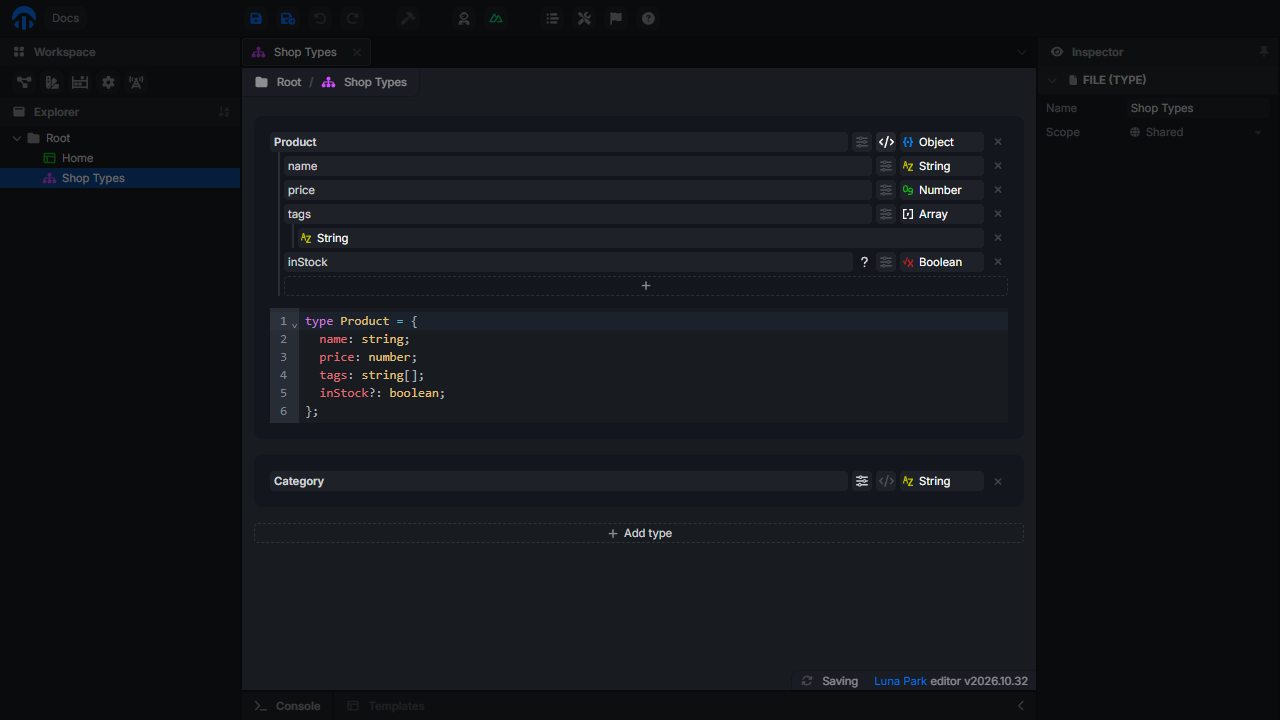
To use a named type, pick Type in any type selector, then the type in the list. The list also offers:
- each Database: the shape of one of its rows;
- each Route: its Input body or its Output.
A reference follows its target: when you change the type in its file, every value using it changes. Use them to keep the frontend and the backend in sync, for example by typing a variable with the Output of the route that fills it.
Options
In type files, the options button next to a type (or a property) sets:
| Option | Effect |
|---|---|
| Description | Shown as a tooltip in forms and on the pins of the graph. |
| Optional | The value can be missing. Marked with ?. Optional properties are left out of default values; add them from the + of the value form. |
| Default | The initial value. String, Number, and Boolean only. |
| Format | For String: color shows a color picker in value forms. date-time and email mark the expected format. |
| Values | The only allowed values, for String and Number. Value forms show them in a dropdown, and a String with values becomes a union of these texts in the generated code. |
Right-click any type selector to Copy a type, Paste it on another value, or open its Options.
Infer and Generate
The type selector of function inputs and outputs, route outputs, and some node pins has two extra entries:
- Infer copies the type of the matching pin: the pin of the same name on the other side of the node, or the
responseof the route. - Generate builds the type from a real value: run the logic once, then pick Generate to type a pin from the value it received. Handy for the response of an API called with
Fetch.
Values and defaults
The Default section of a component, the values of configuration files, and the values of nodes use forms built from the types:
- Basic types get a text field, a number field, a switch, a dropdown (with Values), or a color picker (with the
colorformat). - Arrays have a + to add items, and buttons to move or delete each item.
- Objects and records have a + to add keys. Click a key to rename it.
- Unknown and Union values let you pick the kind of value first.
- Edit as JSON edits an object or an array as JSON text. Save applies it.
- Reset to default puts back the Default of the type.
- Generate with Sidekick fills the value with example data, when Sidekick is connected.
Types in the graph
The pins of the graph are colored by type: one color for String, Number, Boolean, objects, interfaces, and execution. Arrays have their own shape, with the color of their items. Unknown and union pins are neutral.
Hold Ctrl + Alt to show the name and the type of every pin. Connecting pins of incompatible types draws a red wire.