Debugging
Luna Park runs your logic directly in the editor. Pause it on a node with a breakpoint, run it node by node, and check the values it carries.
Breakpoints
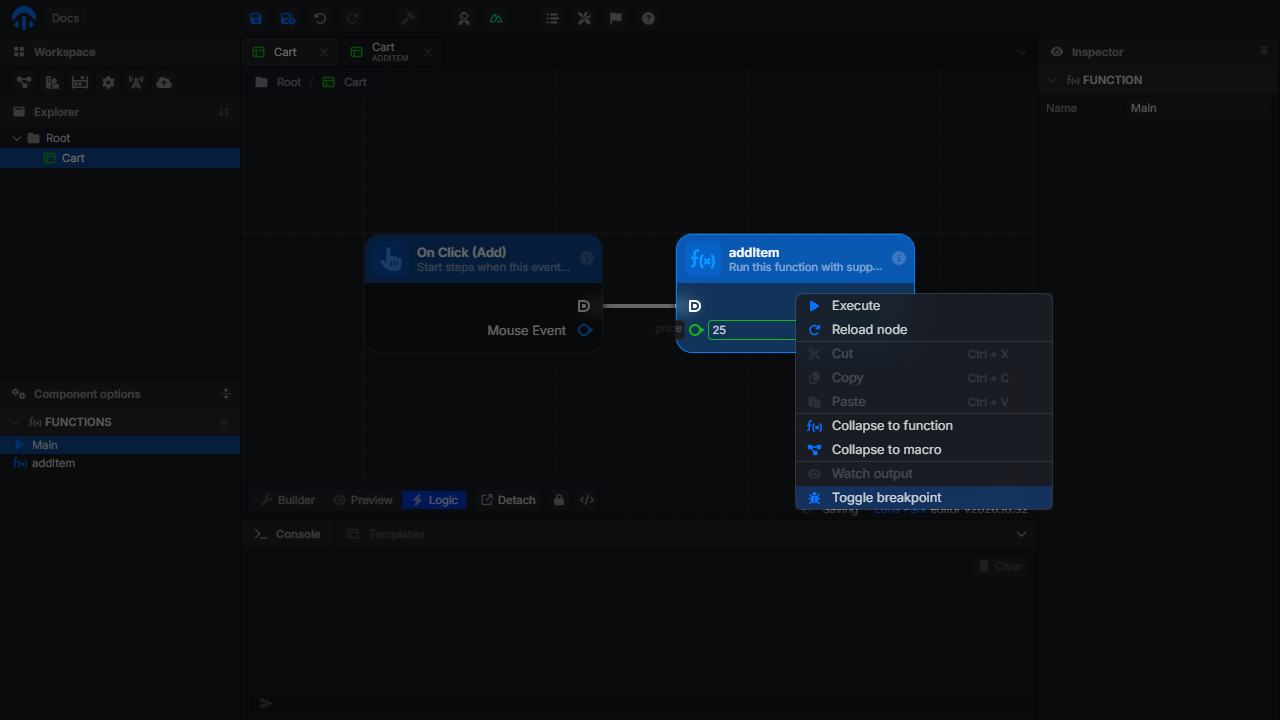
Right-click a node and select Toggle breakpoint. Only nodes with an execution input () can hold a breakpoint.
A red badge marks the node. Click the badge to remove the breakpoint.
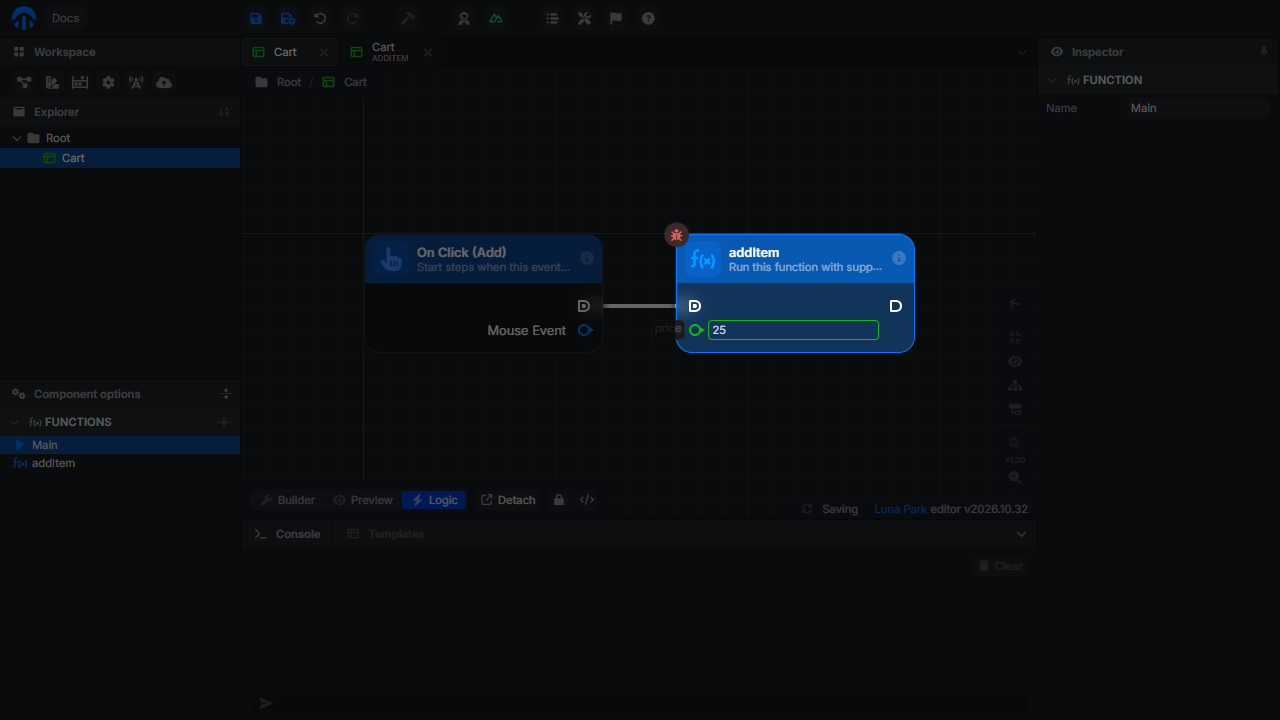
Breakpoints are not saved with the project: they are cleared when you reload the editor.
Pausing the Execution
Run your app as usual, in the Preview panel for example. When the execution reaches a node with a breakpoint, it pauses before running the node: the editor opens the logic containing the node, outlines it, and shows the debugger bar at the bottom of the logic editor, with the name of the paused node.
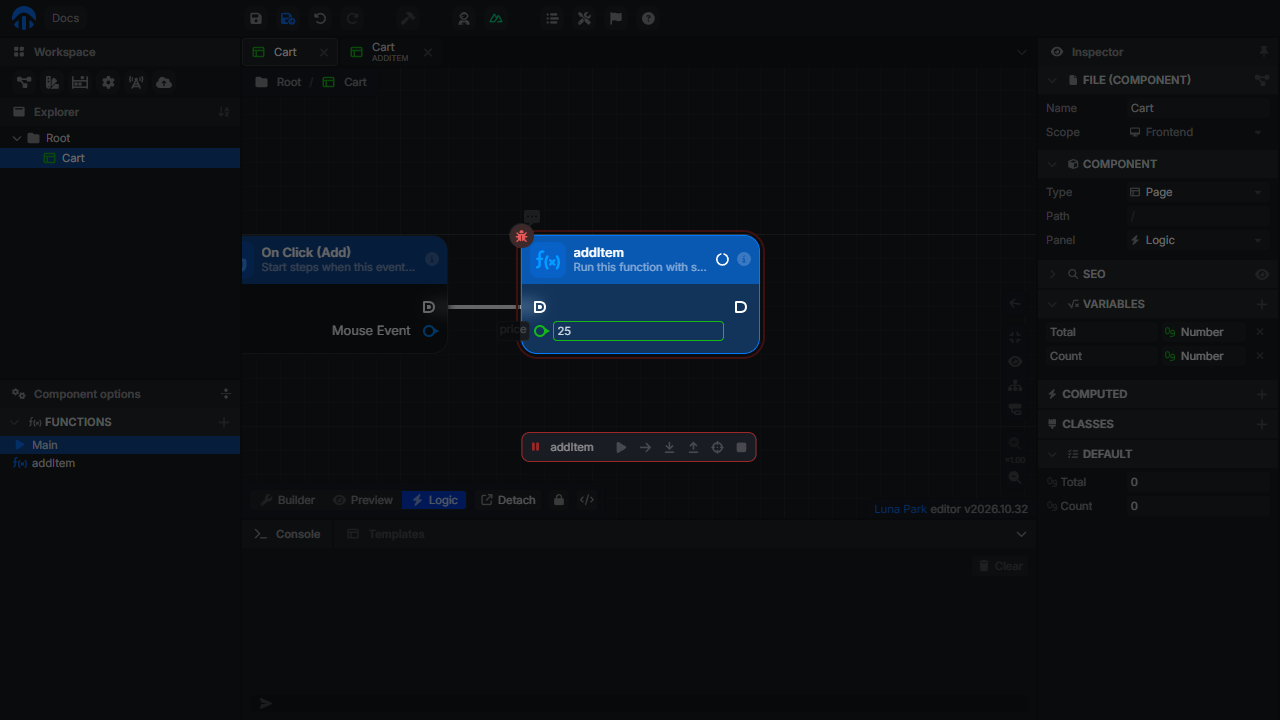
| Button | Action |
|---|---|
| Continue | Resume until the next breakpoint. |
| Step | Pause on the next node of the current logic. A function call runs entirely. |
| Step into function | Pause on the next node, inside the called function if the paused node is a function call. |
| Exit function | Run the rest of the current function, and pause on the next node after the call. |
| Show paused node | Go back to the paused node after navigating elsewhere. |
| Stop | Stop the execution. The rest of the flow doesn't run. |
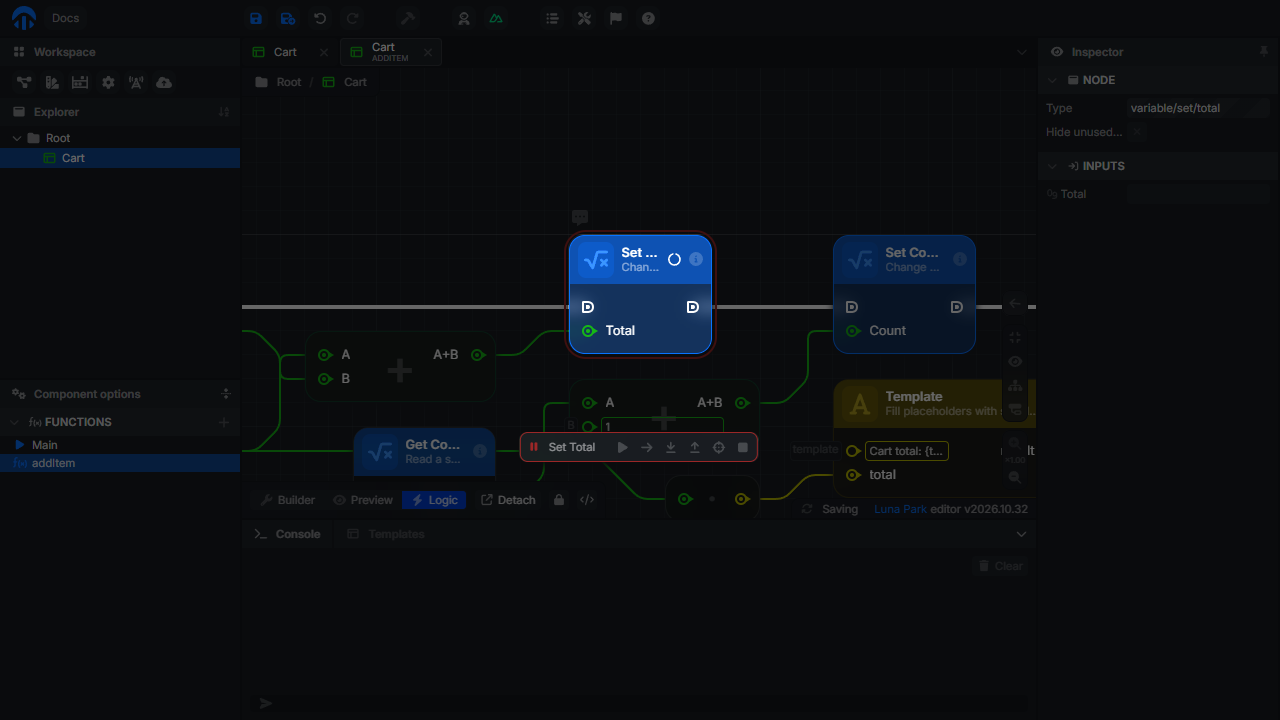
When several flows reach a breakpoint at the same time, they pause one after the other.
Inspecting Values
Press Ctrl + Space (or Ctrl + Q), or click the button of the logic editor, to show the values held by the anchors. See Inspecting the Graph.
Logging to the Console
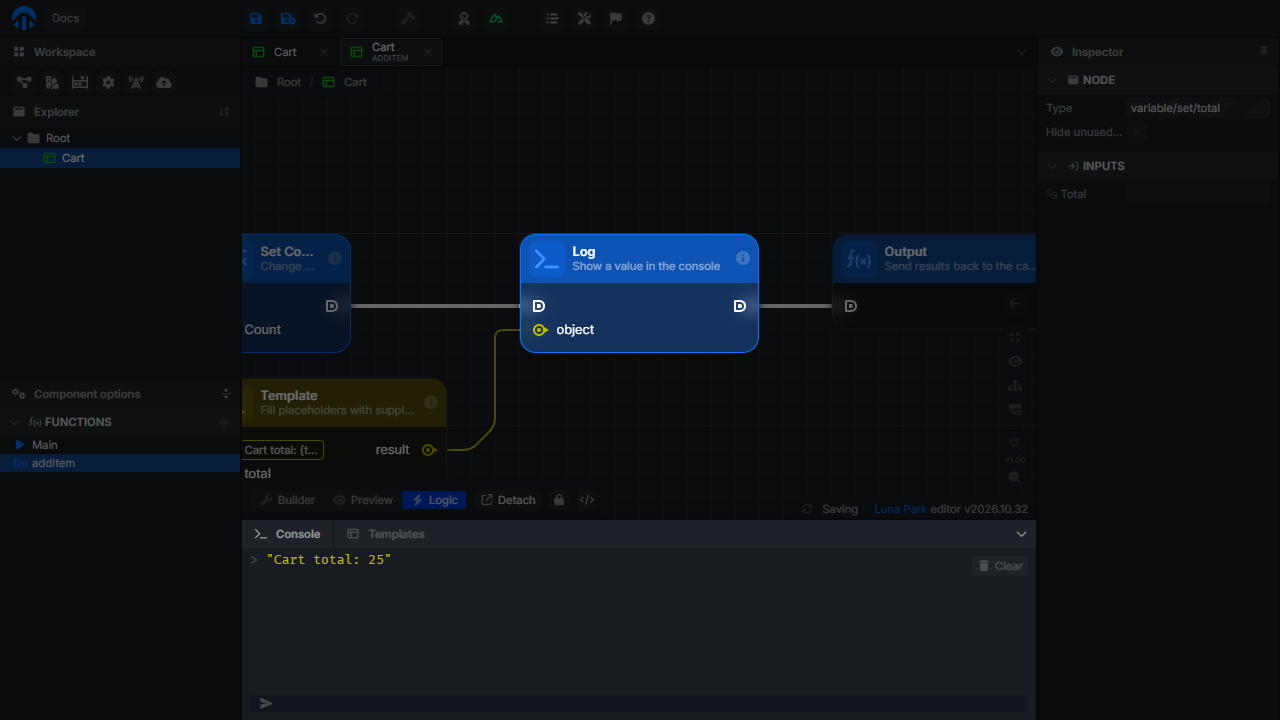
The Log node prints a value in the console at the bottom of the editor, and in your browser's console. Logs are useful to follow values over many runs without pausing.
Stopping Runaway Logic
- While logic runs, the Computing indicator appears at the bottom of the main view. Click its button to stop every running flow. The console logs the node where it stopped.
- The Stack Limit session flag stops a flow after too many node executions without a pause, which usually means an infinite loop. It is enabled by default. Session flags are in the Flags menu of the top bar.
- The Animation session flag slows the execution down and animates the wires, to follow the flow by eye.